About
This Automobile Lead Management App is designed to help company dealerships, sales teams, and management efficiently manage customer inquiries and sales operations. It provides a centralized platform to track leads, manage follow-ups, monitor deal status, and analyze sales performance through a single dashboard.
- Manage all customer leads and inquiries in one place
- Track leads dealer-wise and salesperson-wise
- Schedule and manage follow-ups with reminders and notes
- Monitor successful, failed, and pending deals
- Manage new and old vehicle inventory
- Analyze overall sales performance through real-time dashboards
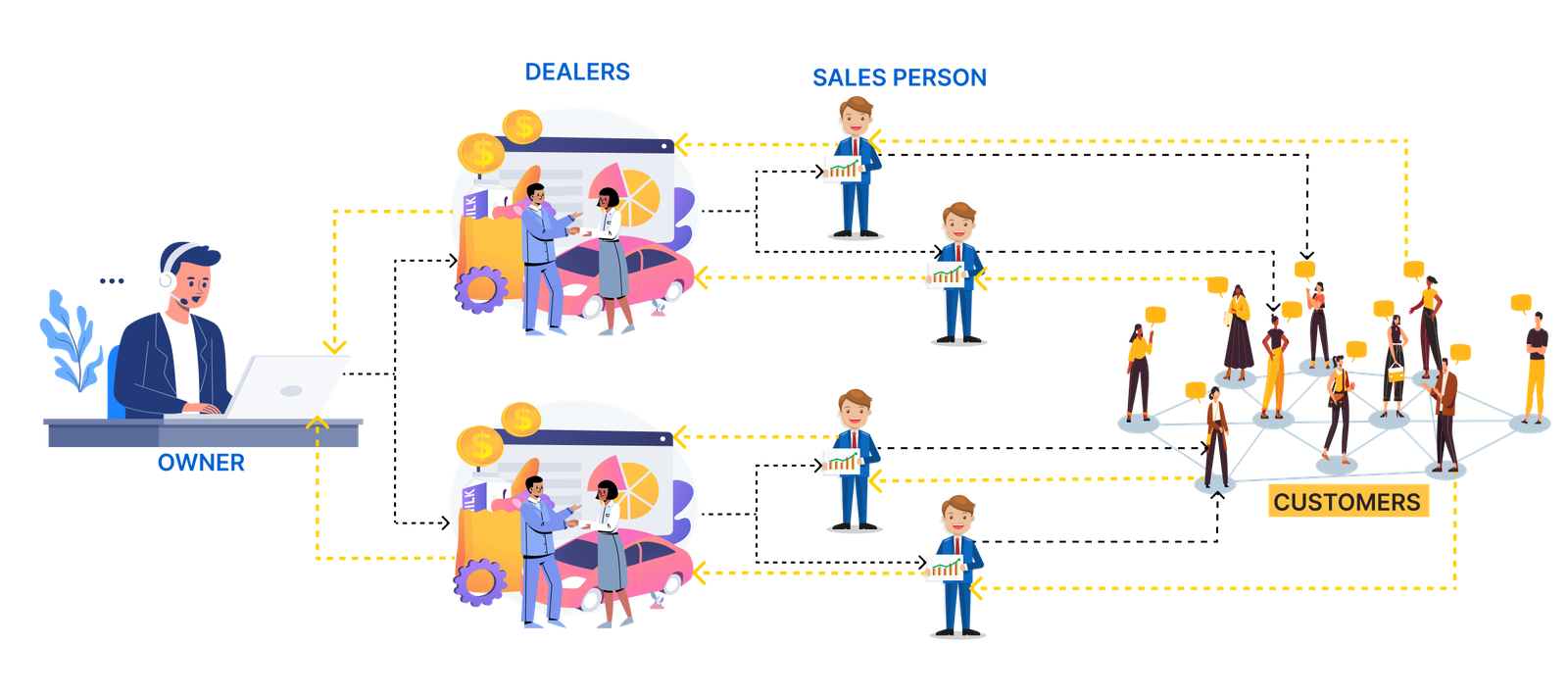
Key Features
Centralized Lead Management
Manage all customer inquiries and leads from a single, centralized platform.
Dealer & Salesperson Tracking
Track leads dealer-wise and salesperson-wise for better accountability.
Follow-up Management
Schedule follow-ups with reminders and notes to ensure no lead is missed.
Sales Performance Dashboard
View real-time insights into sales performance and lead conversion.
Deal Status Tracking
Monitor successful, failed, and pending deals with clear status updates.
Vehicle Inventory Management
Manage new and old vehicle inventory efficiently within the system.
Achieve Goals & Target Management
Set monthly company targets and automatically distribute goals based on historical performance and growth factors.
Platform Overview
A complete overview of the Automobile Lead Management Platform, showcasing key modules, workflows, and features through real-time application screens.
Login System
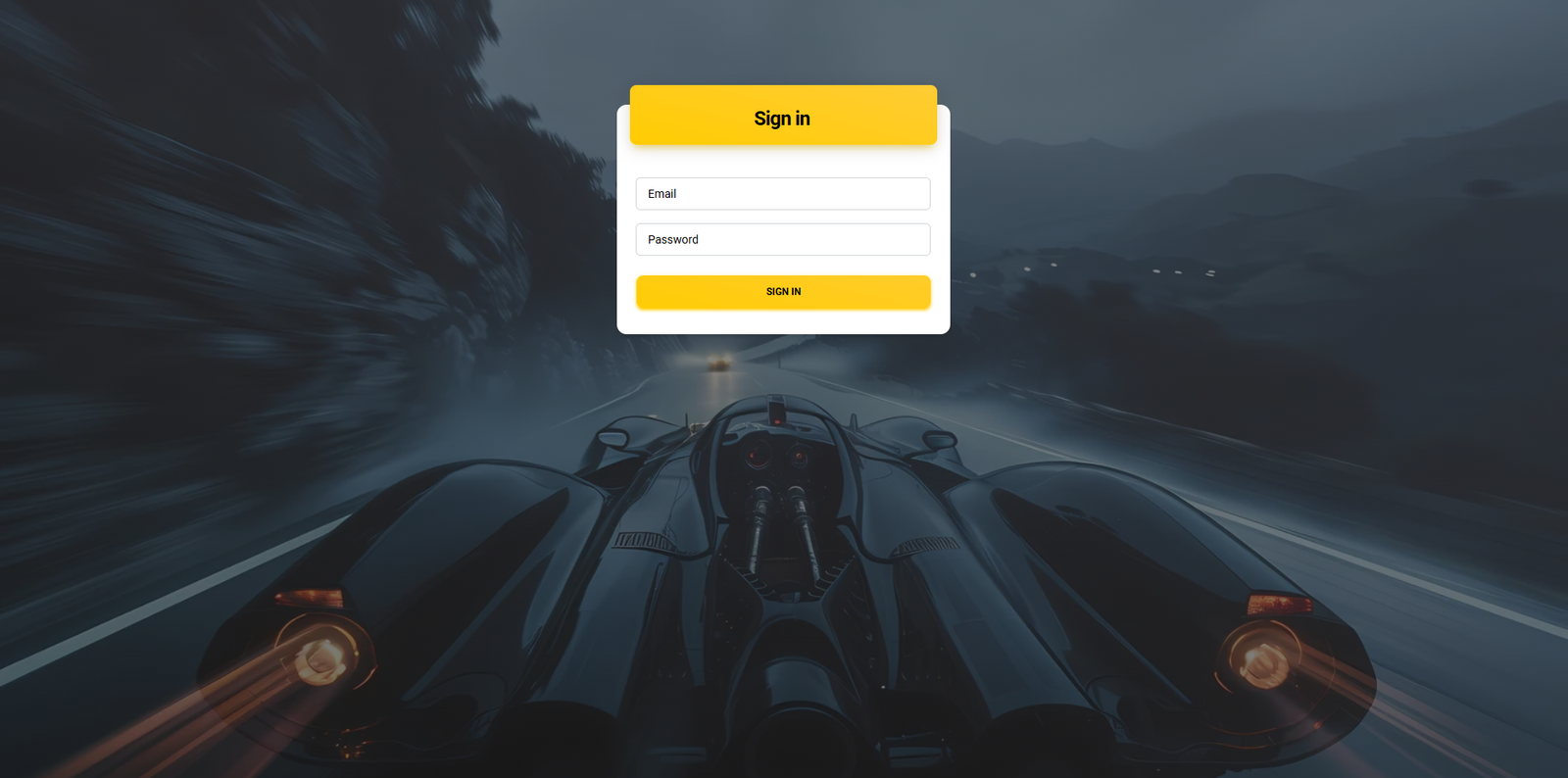
The platform provides a secure and intuitive login system accessible at:
automobile.appteam.in/sign-in
Login Page Design
A clean and modern login interface with the following elements:
Security Features
- Secure HTTPS connection
- Password encryption
- Input validation
- Error handling for invalid credentials
Login Process
- Navigate to
automobile.appteam.in/sign-in - Enter your registered email address
- Enter your password
- Click "SIGN IN" button
- System redirects to appropriate dashboard based on user role
Dashboard
Dashboard
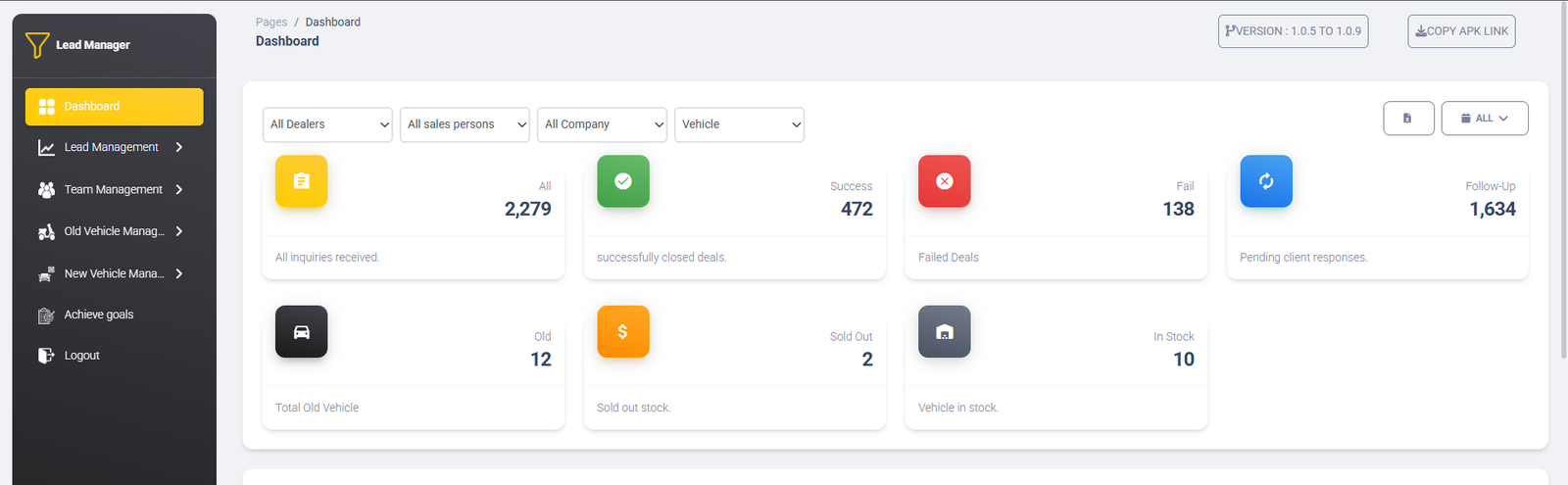
The main dashboard provides administrators with a comprehensive overview of all business activities:
Filter System
Advanced filtering options for data analysis:
- Date range filtering
- Dealer-wise filtering
- Salesperson filtering
- Status-based filtering
- Vehicle type filters
Export Features
Data export functionality:
- Export to Excel (.xlsx format)
- Custom column selection
- Filtered data export
- Bulk data download
Analytics Overview
Real-time business metrics:
- Total Inquiries: All received customer inquiries
- Closed Deals: Old Vehicle sales tracked separately
- Failed Deals: Analysis of unsuccessful conversions
- Follow-ups Required: leads needing attention
- Inventory Status: vehicles currently in stock
Performance Rankings
Ranking dashboard showing top performers. Rankings update when page is refreshed or filters are applied:
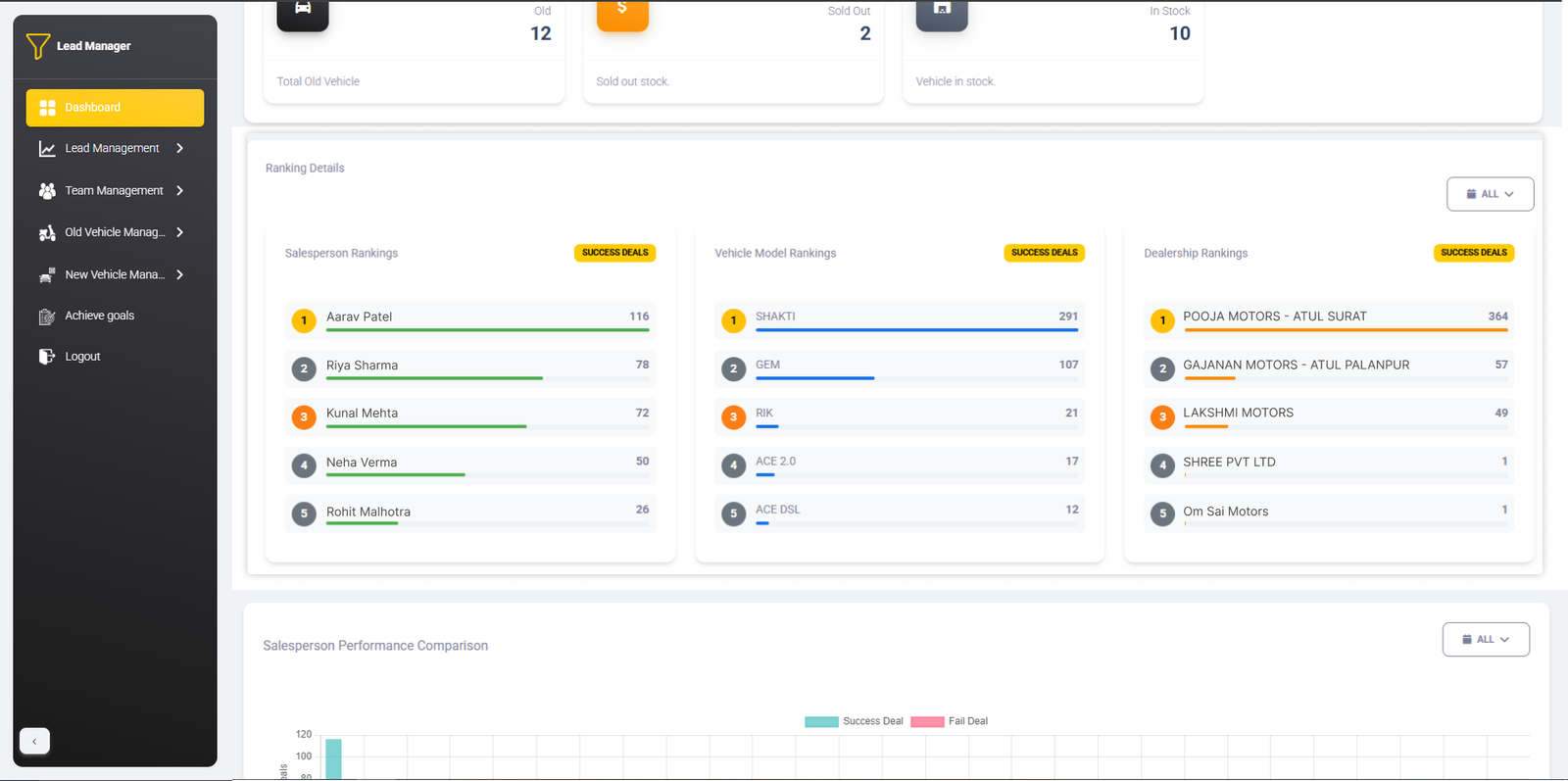
Top Salespersons
Ranked by lead conversions
Top Vehicle Models
Most popular vehicles by inquiries
Top Dealerships
Ranked by overall performance
Rankings update on page refresh or when date filters are applied.
Performance Comparison Chart
Interactive bar chart for detailed sales performance analysis:
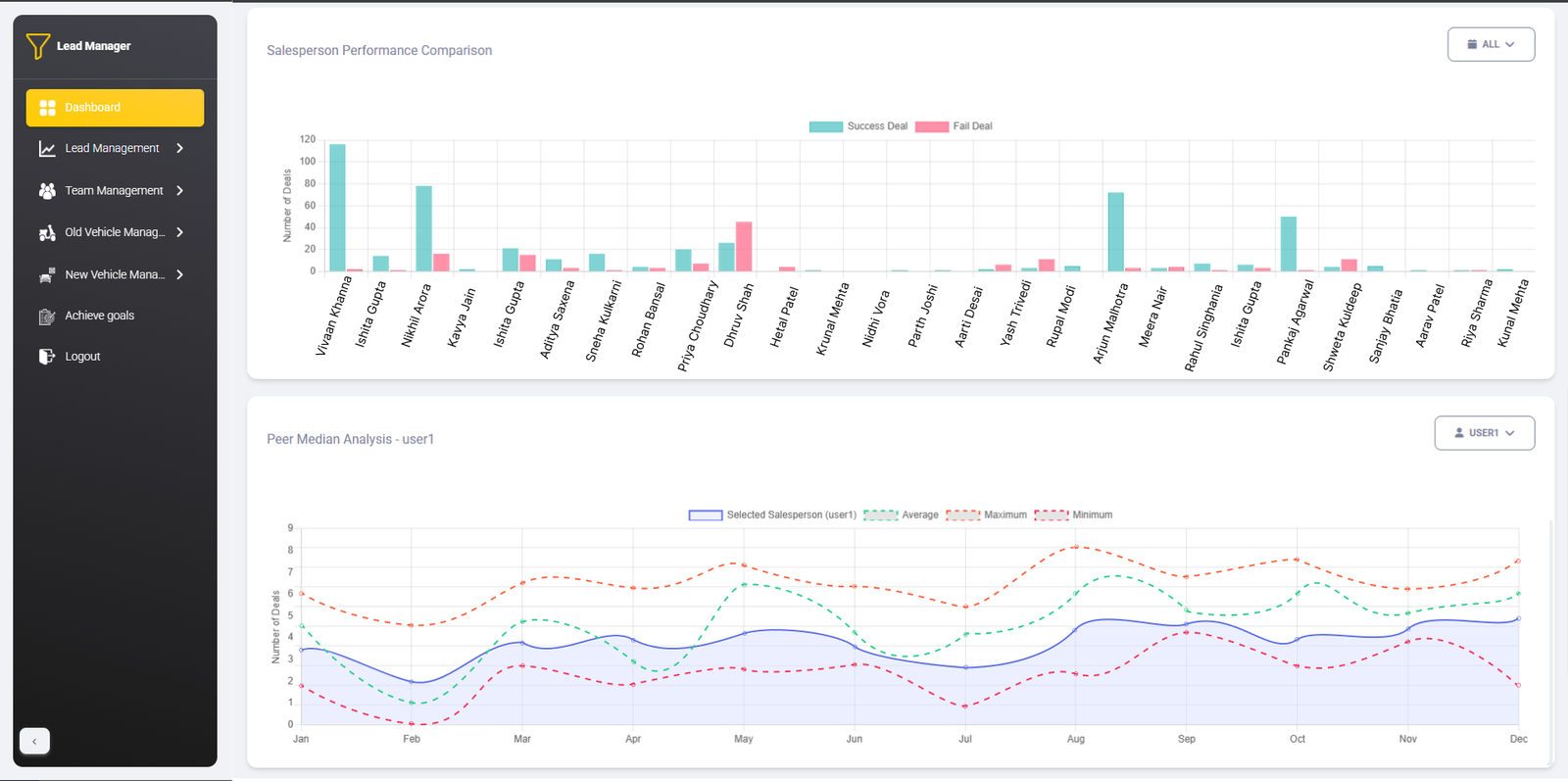
Chart Elements:
- Success vs Failed deals comparison
- Deal count on Y-axis (0-120 range)
- Custom date picker
Filter Options:
- Date range selection
- Salesperson dropdown selector
- Compare with team averages
Follow Up Management
Track and manage all customer follow-ups efficiently with advanced filtering and export options.
Follow Up Management Interface
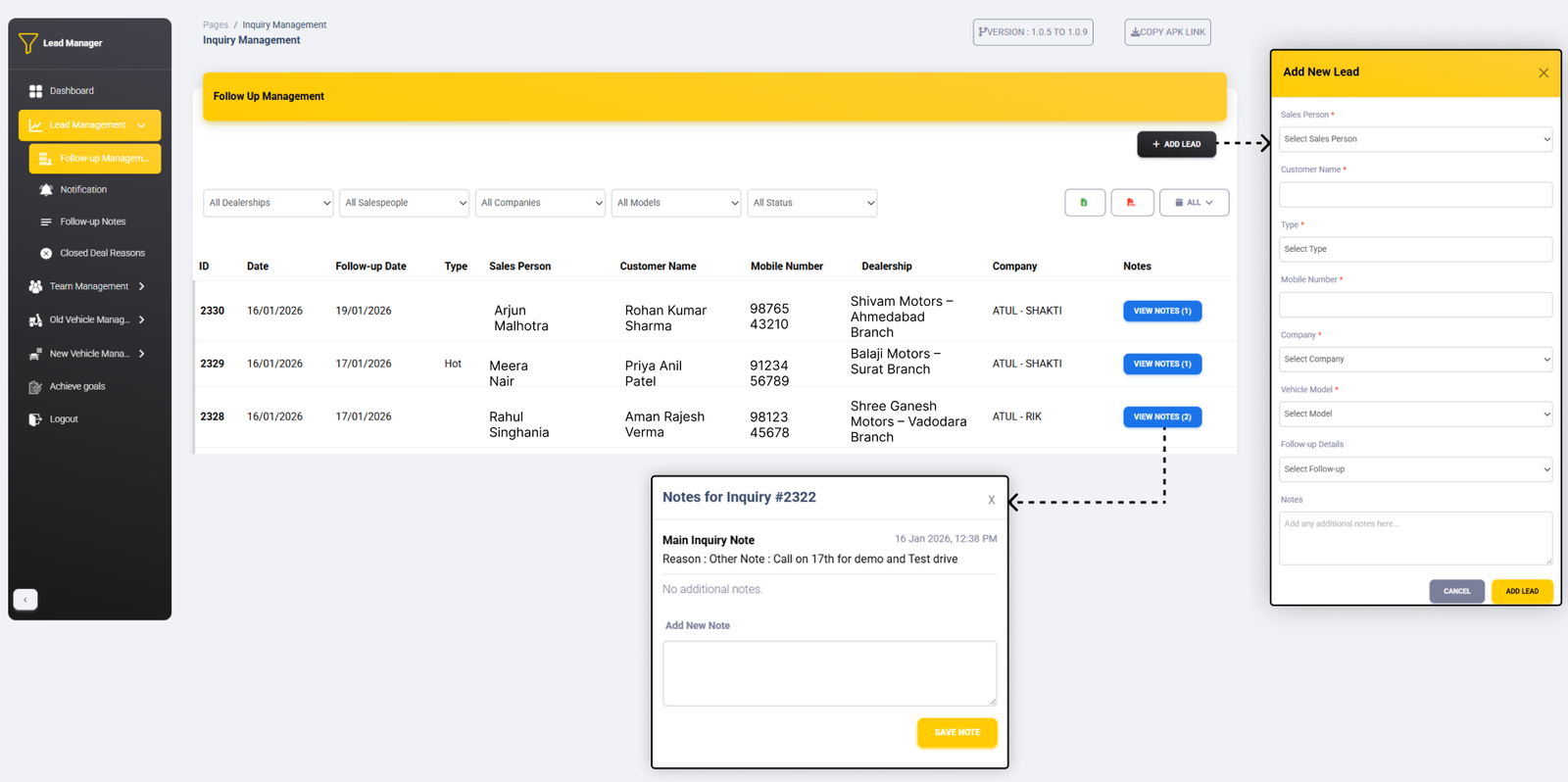
Advanced Filtering Options
- Dealership Wise: Filter by dealership location
- Salesperson Wise: Filter by individual sales staff
- Company Wise: Filter by vehicle company
- Vehicle Wise: Filter by vehicle type
- Model Wise: Filter by specific vehicle models
- Date Range Wise: Filter by specific date periods
Export Options
- Excel Export: Download data as .xlsx files
- PDF Export: Generate PDF reports
- Column Selection: Choose specific columns to export
- Filtered Export: Export only filtered data
- Bulk Export: Export large datasets
Send Notification
Send targeted notifications using flexible selection criteria across multiple categories.
Notification Sending Interface
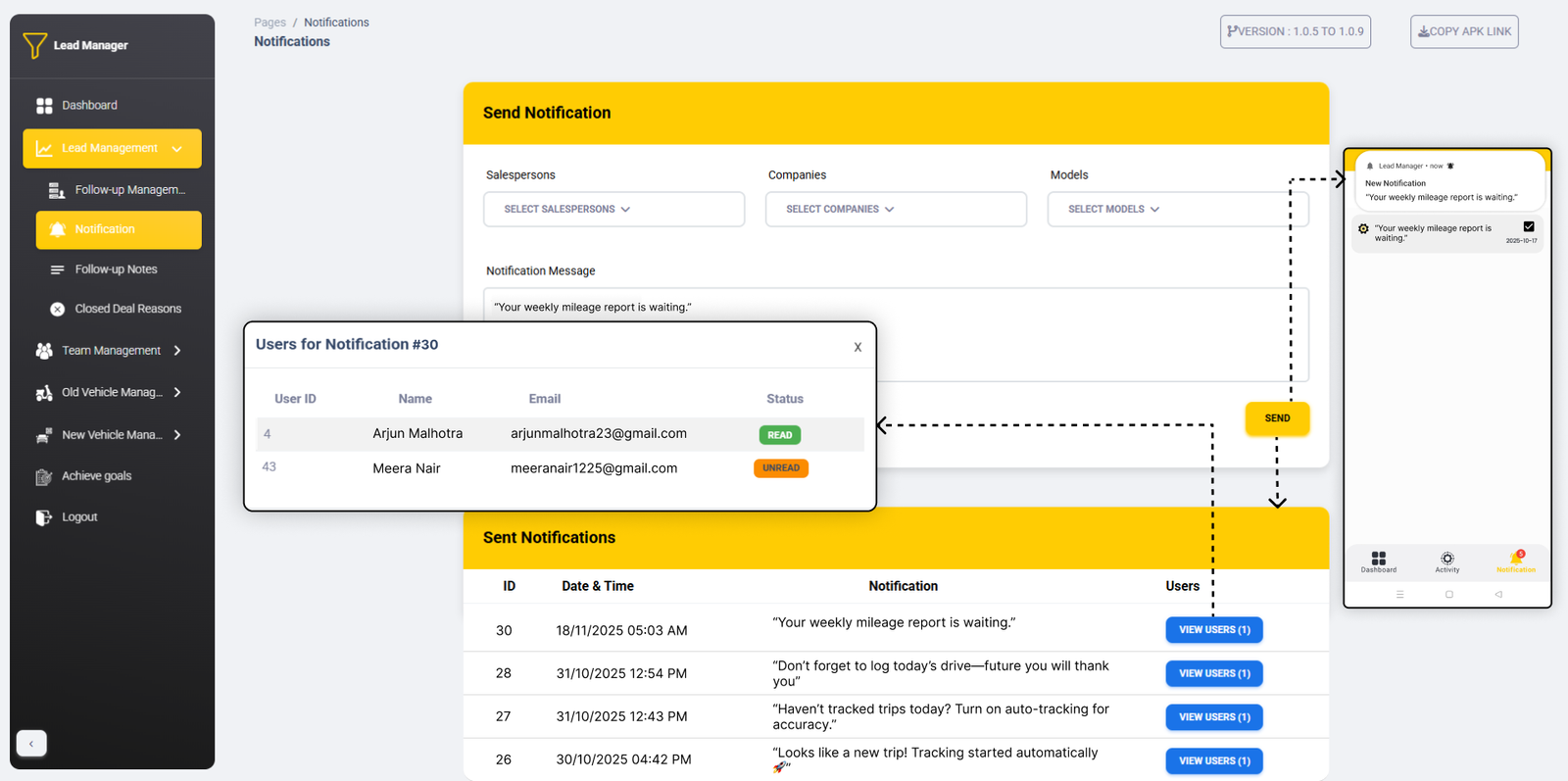
Multiple Selection Options
Select recipients using these flexible criteria:
Salespersons
- Multiple selection available
- Select specific individuals
- Notification sent to chosen salespersons
Companies
- Multiple company selection
- Select specific companies
- All salespersons in selected companies receive notification
Models
- Multiple model selection
- Select specific vehicle
- Salespersons handling those models receive notification
Sent Notifications History
Track all sent notifications with details
Follow-up Notes Management
Follow-up Notes Interface
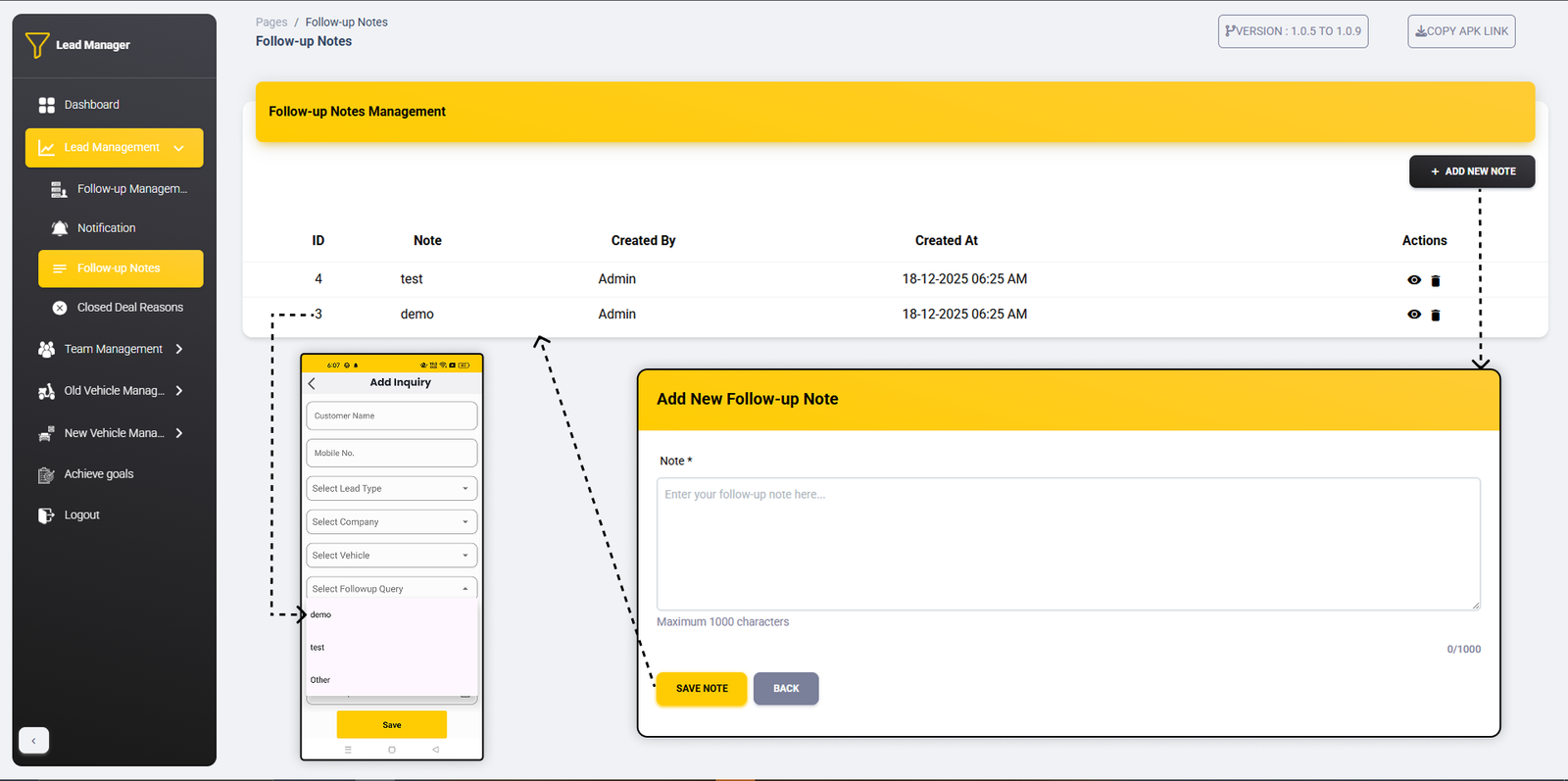
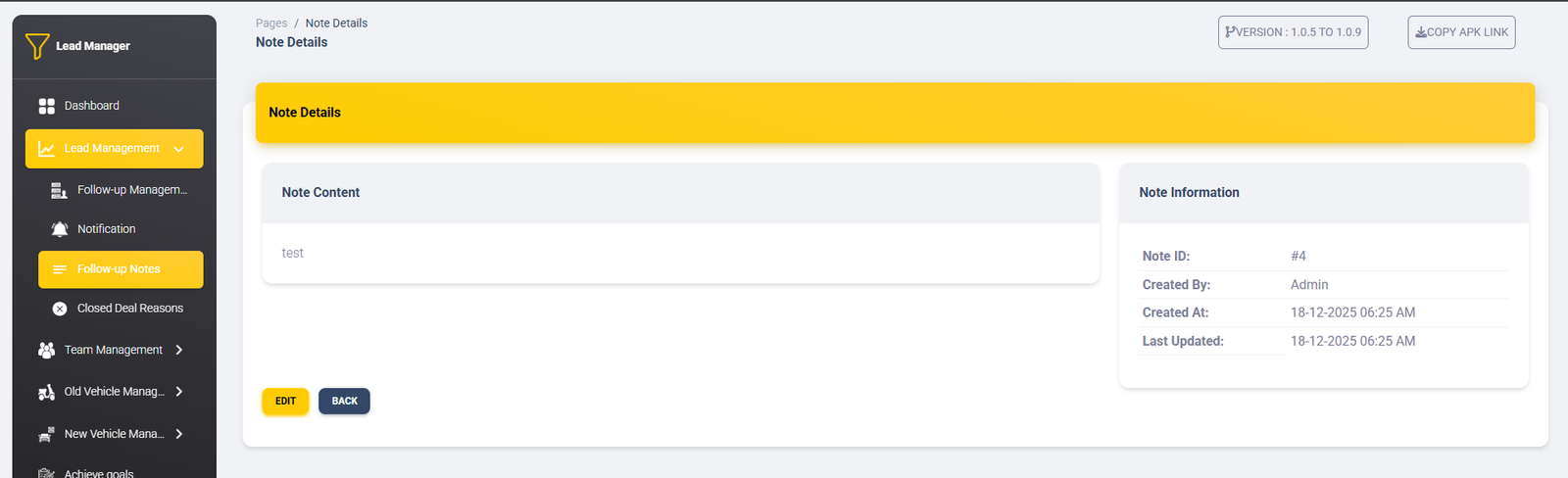
Notes Listing
Add New Note
Integration with Inquiries
Follow-up notes are linked to customer inquiries in the app:
- When adding a new inquiry, select from existing follow-up notes
- Pre-defined notes save time and ensure consistency
- Notes appear in inquiry details for reference
- Helps maintain standardized communication
Usage: Create common follow-up notes here, then select them when adding
new inquiries
in the app to maintain consistent communication patterns.
Closed Deal Reasons Management
Closed Deal Reasons Interface
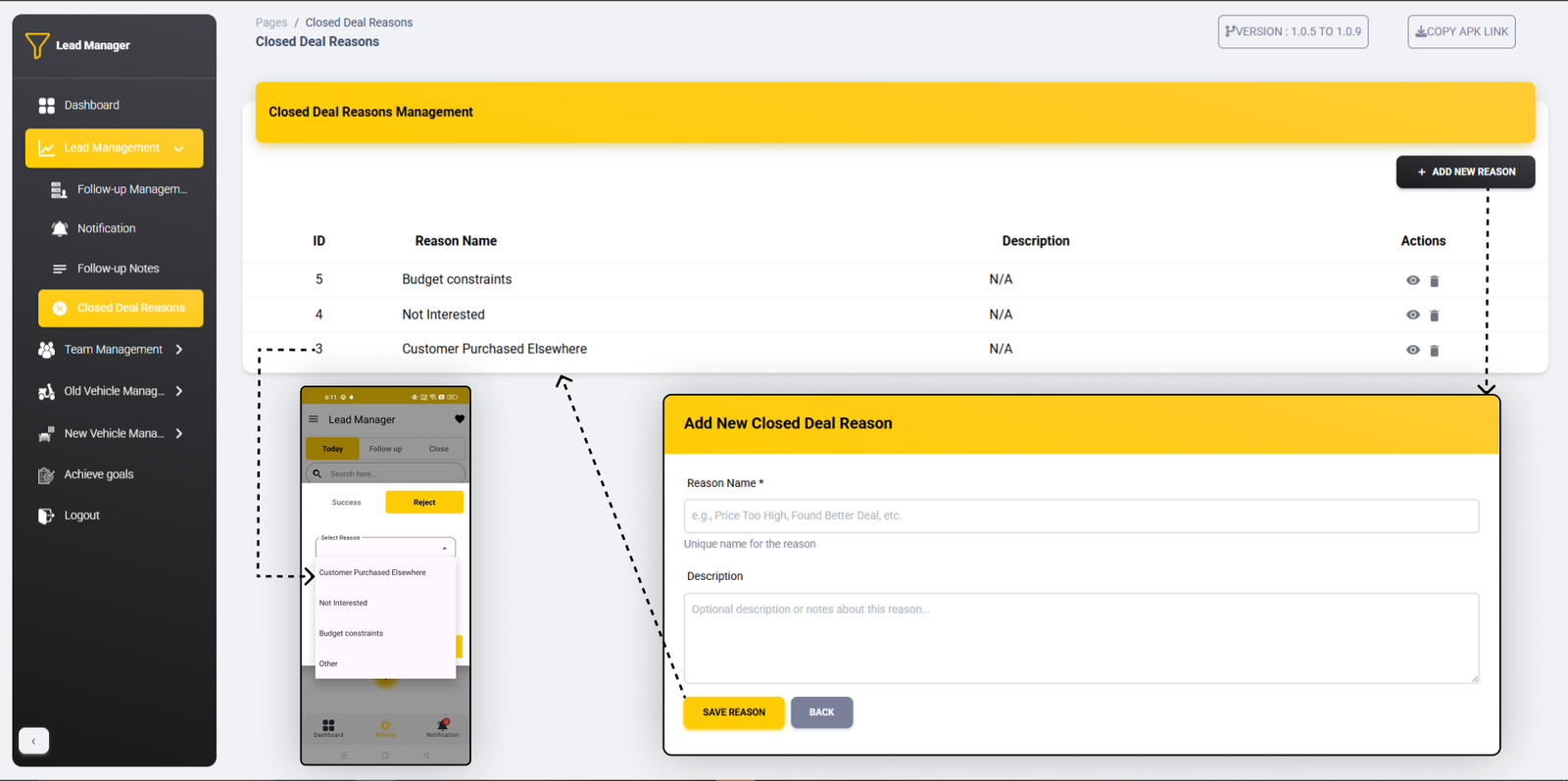
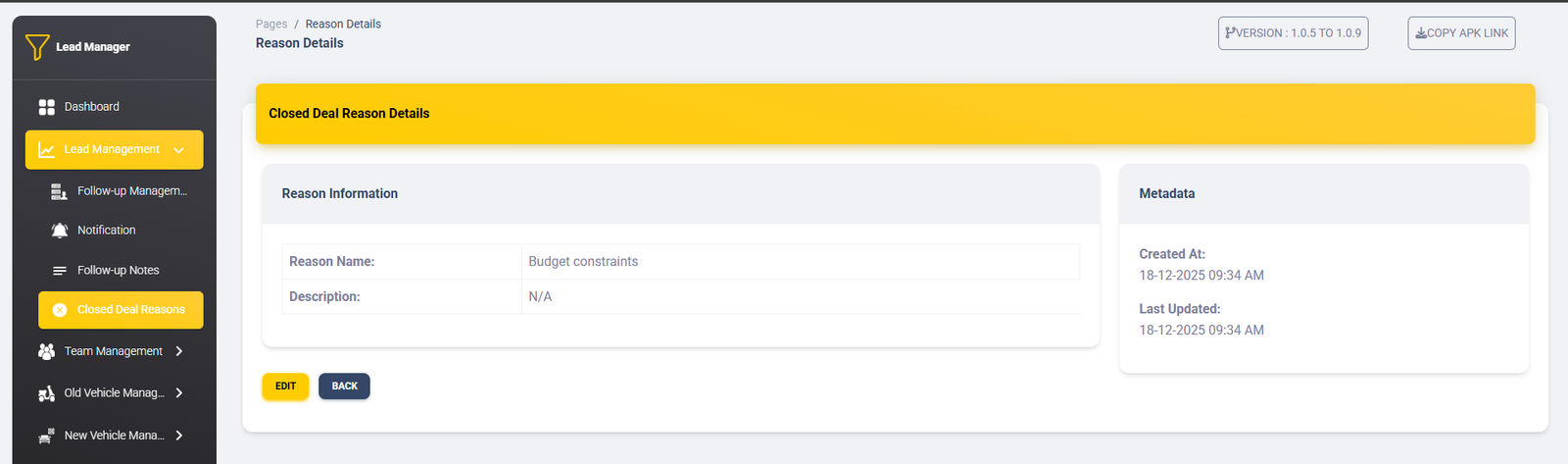
Reasons List
Add New Reason
Integration with Deal Closure
These reasons are used when closing deals in the app:
- When marking a deal as closed, select from this reason list
- Helps categorize why deals were unsuccessful
- Provides analytics on common closure reasons
- Improves sales strategy based on failure analysis
Usage: Create standard closure reasons here. When closing a deal in
the app,
salespersons select from this pre-defined list to categorize why the deal didn't
convert.
Vehicle Management
Vehicle Management Interface
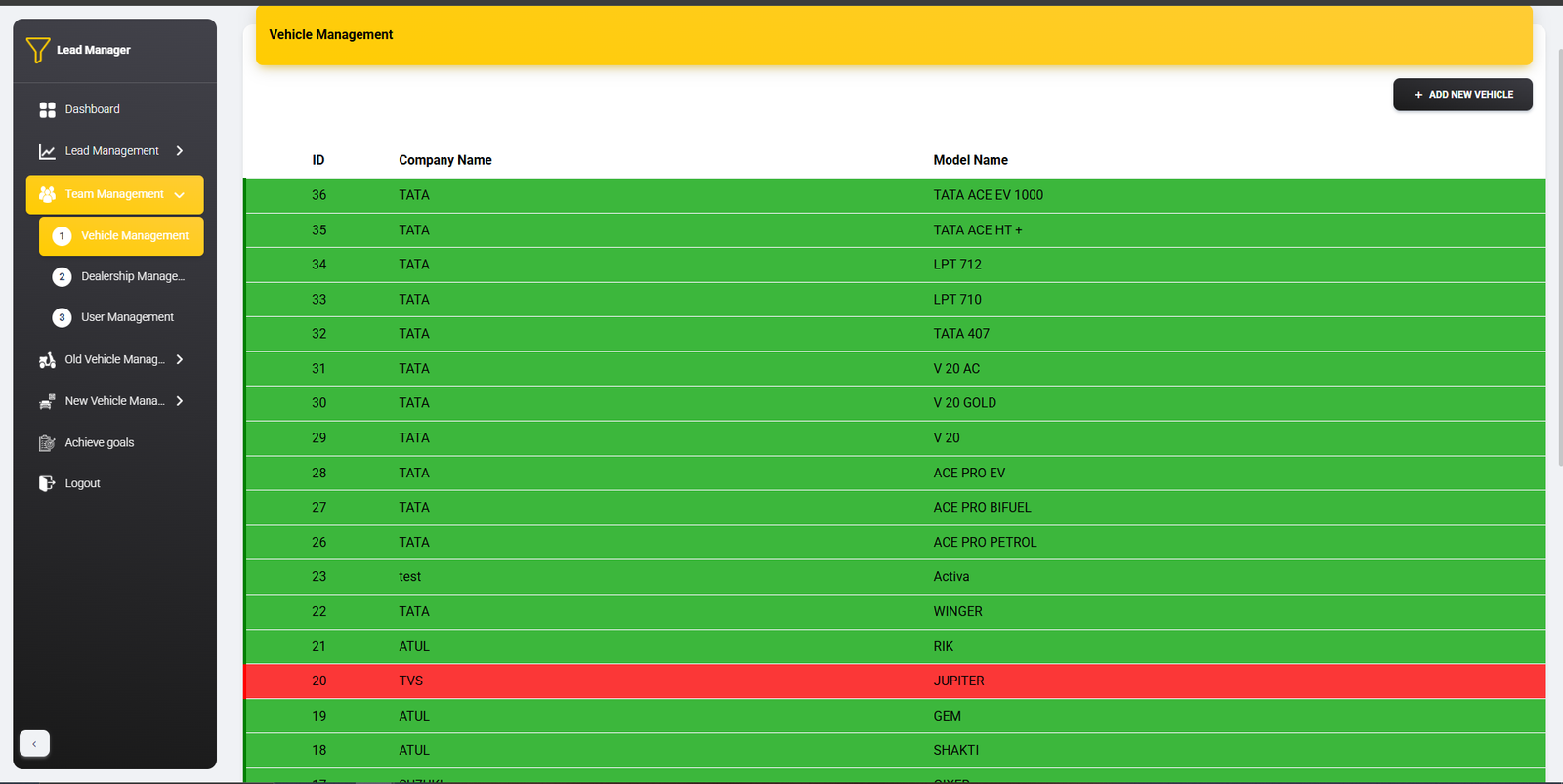
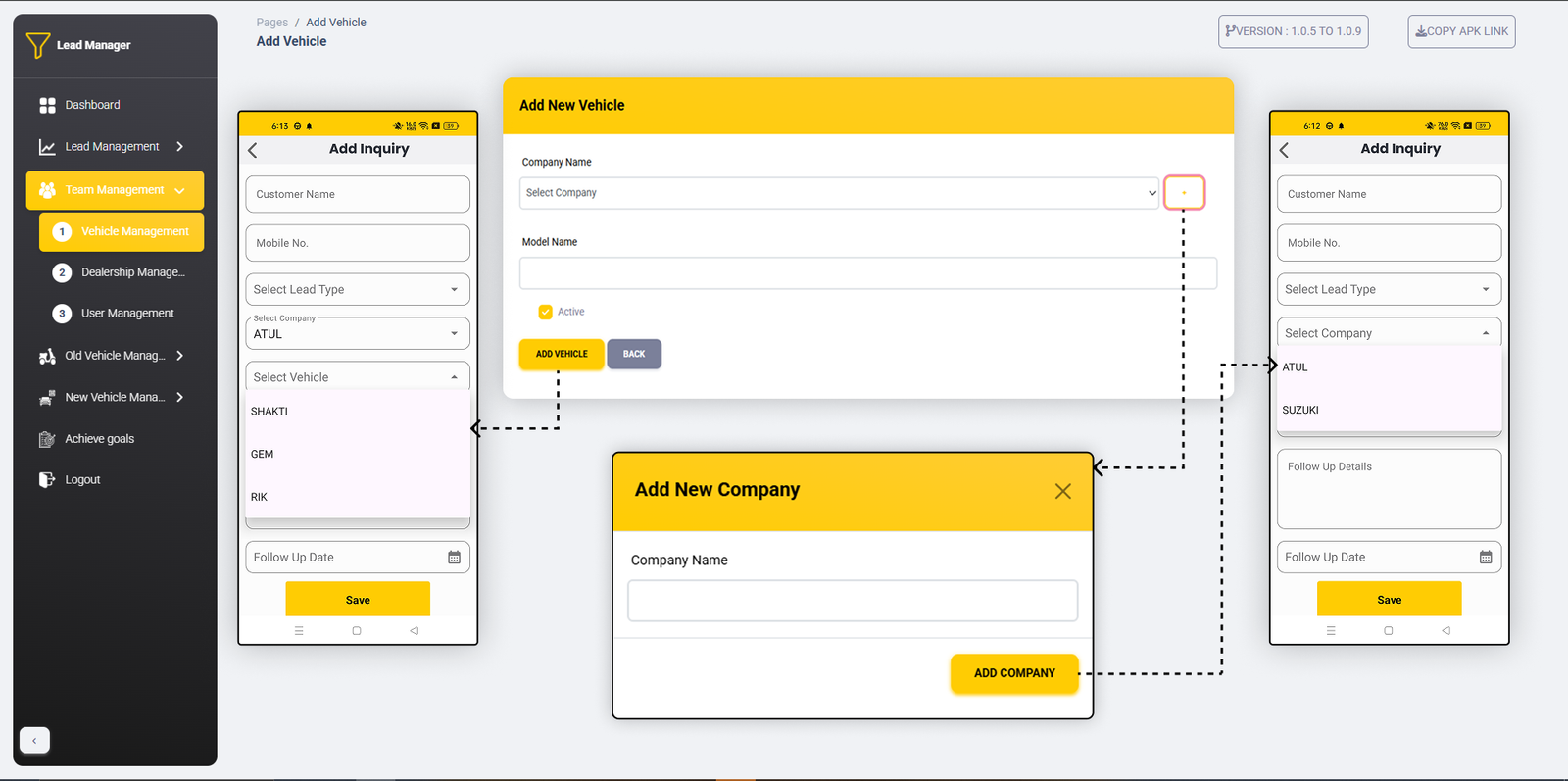
Vehicle List
Add New Vehicle
- Company Selection: Choose from existing companies
or add new
- Add New Company Option: Option to add completely
new company
- Model Name: Enter new vehicle model
- Active Status: Toggle to activate/deactivate
vehicle
Integration with Inquiries
Vehicles added here appear in the app when creating new inquiries:
- Vehicle dropdown in inquiry form shows all active vehicles
- Inactive vehicles (shown in red) are not available for selection
- Newly added vehicles immediately appear in the dropdown
- Vehicle selection is required when creating new customer inquiries
Company Management
Two ways to manage vehicle companies:
- Select Existing: Choose from pre-defined companies in
dropdown
- Add New Company: Option to add completely new vehicle
company
- New companies added appear immediately in the company dropdown
- Companies can have multiple vehicle models
Note: Inactive vehicles are displayed in red color and are not
available
for selection when creating new inquiries in the mobile app.
Dealership Management
Dealership Management Interface
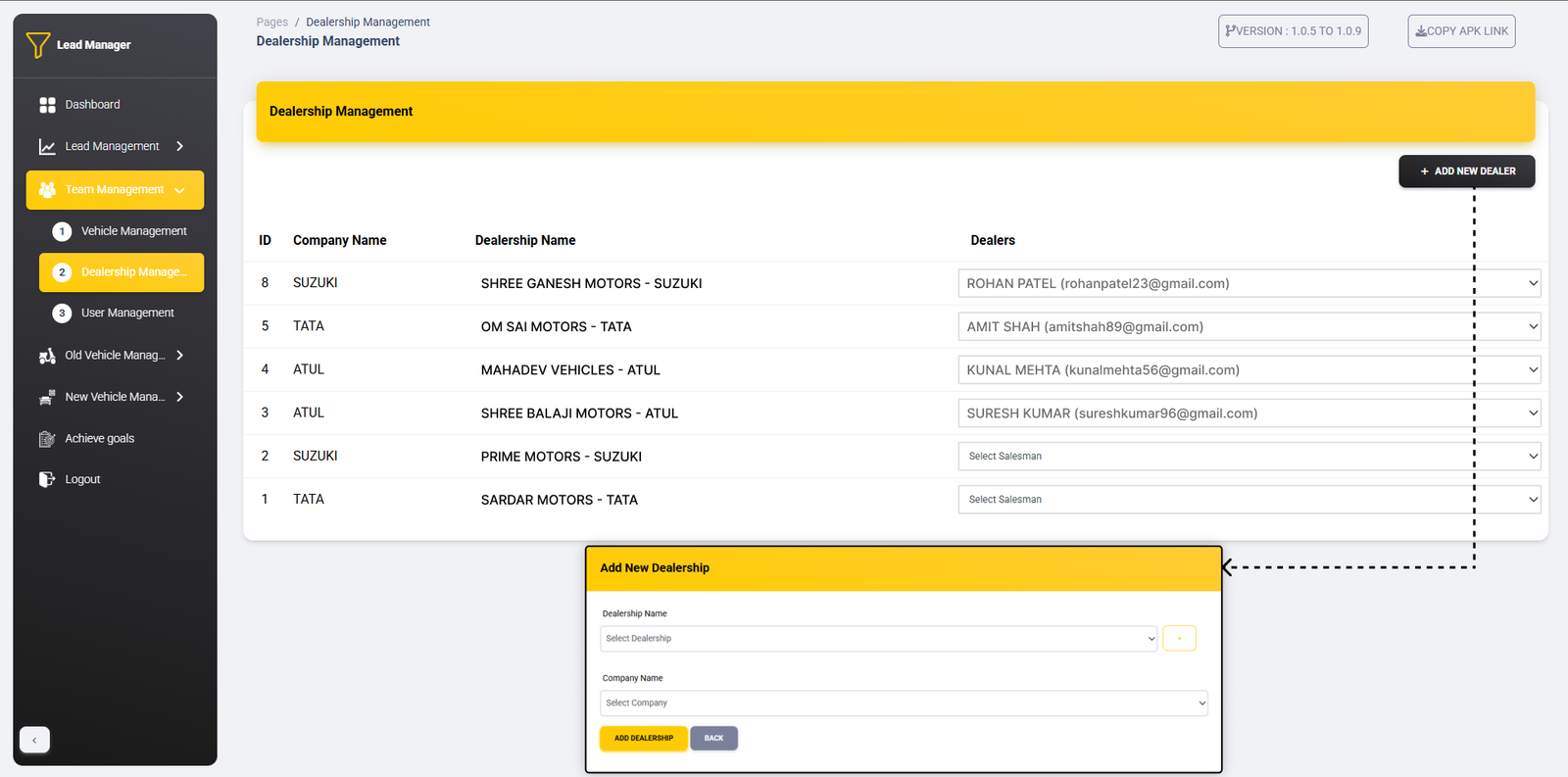
Dealership List
- Dealers: Assigned salespersons
Add New Dealership
- Department: Type new name or select from
dropdown
- Company Name: Select from vehicle company dropdown
Dealer Assignment Features
Assign salespersons as dealers to dealerships:
- From dealership list, assign salespersons as dealers
- Dropdown shows all salespersons from selected company
- When salesperson is made dealer, they get dealer login credentials
- Dealers can login to the system with their credentials
- Dealers see dealership-specific data in their dashboard
Important: When a salesperson is assigned as a dealer to a
dealership,
they receive dealer-level access with login credentials. Dealers see only their
assigned
dealership's data in the application.
User Management
User Management Interface
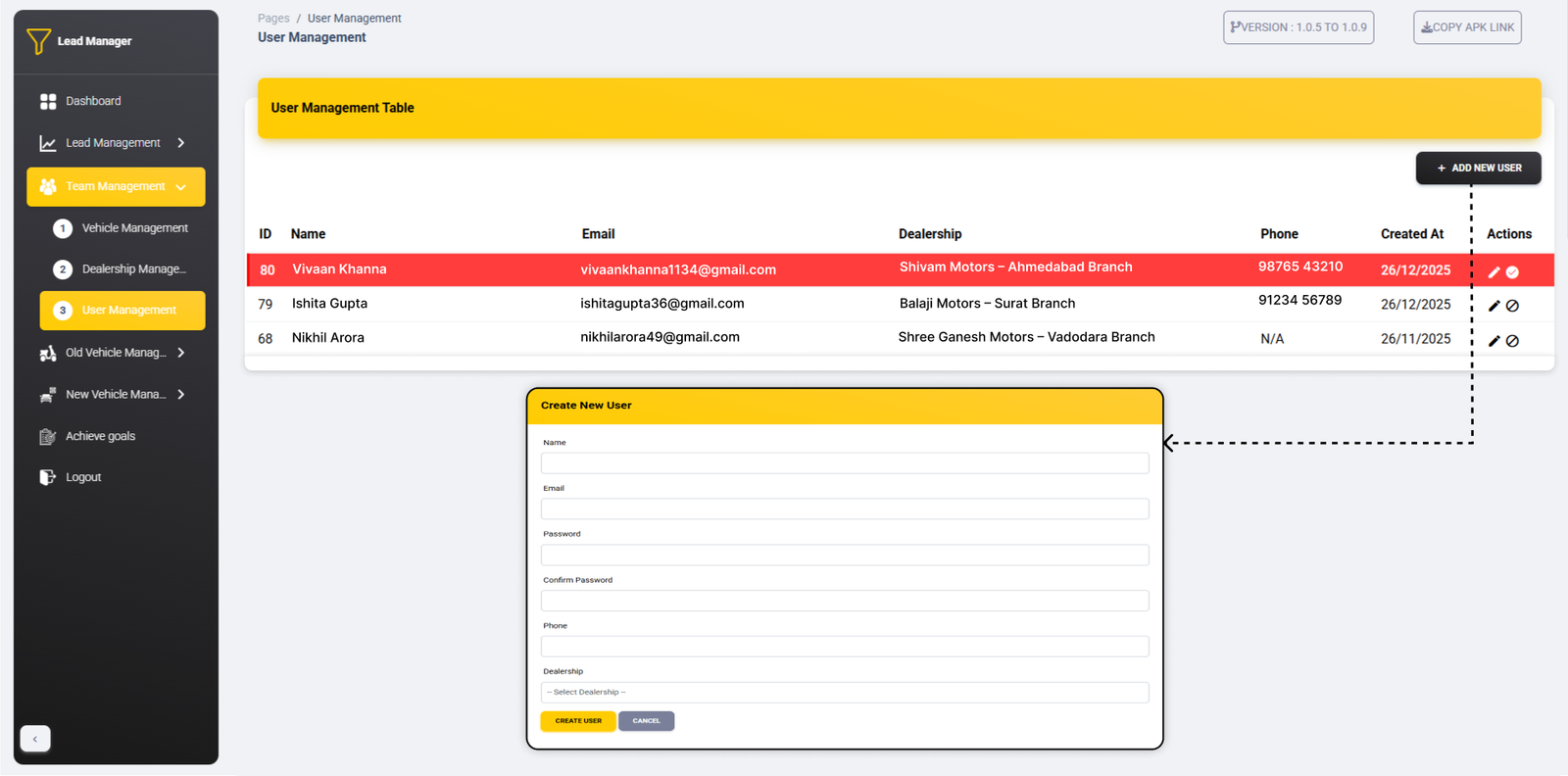
Users List
- Actions: Lock/unlock user accounts (🔒)
Create New User
- Dealership: Select from dropdown
Admin-Only Access
Important: User management is restricted to administrators
only:
- Only admin users can add new salespersons
- Only admin users can edit or delete user accounts
- Only admin users can lock/unlock user accounts
- Dealers and salespersons cannot access this section
Account Management
Administrators have full control over user accounts:
- Lock/Unlock: Disable or enable user login
- Password Reset: Reset user passwords if needed
- Dealership Assignment: Assign users to specific
dealerships
- User Permissions: Control access levels
Restricted Access: This section is accessible only to
administrators.
Dealers and salespersons cannot add, edit, or delete user accounts.
Questionnaire Management
Questionnaire Interface
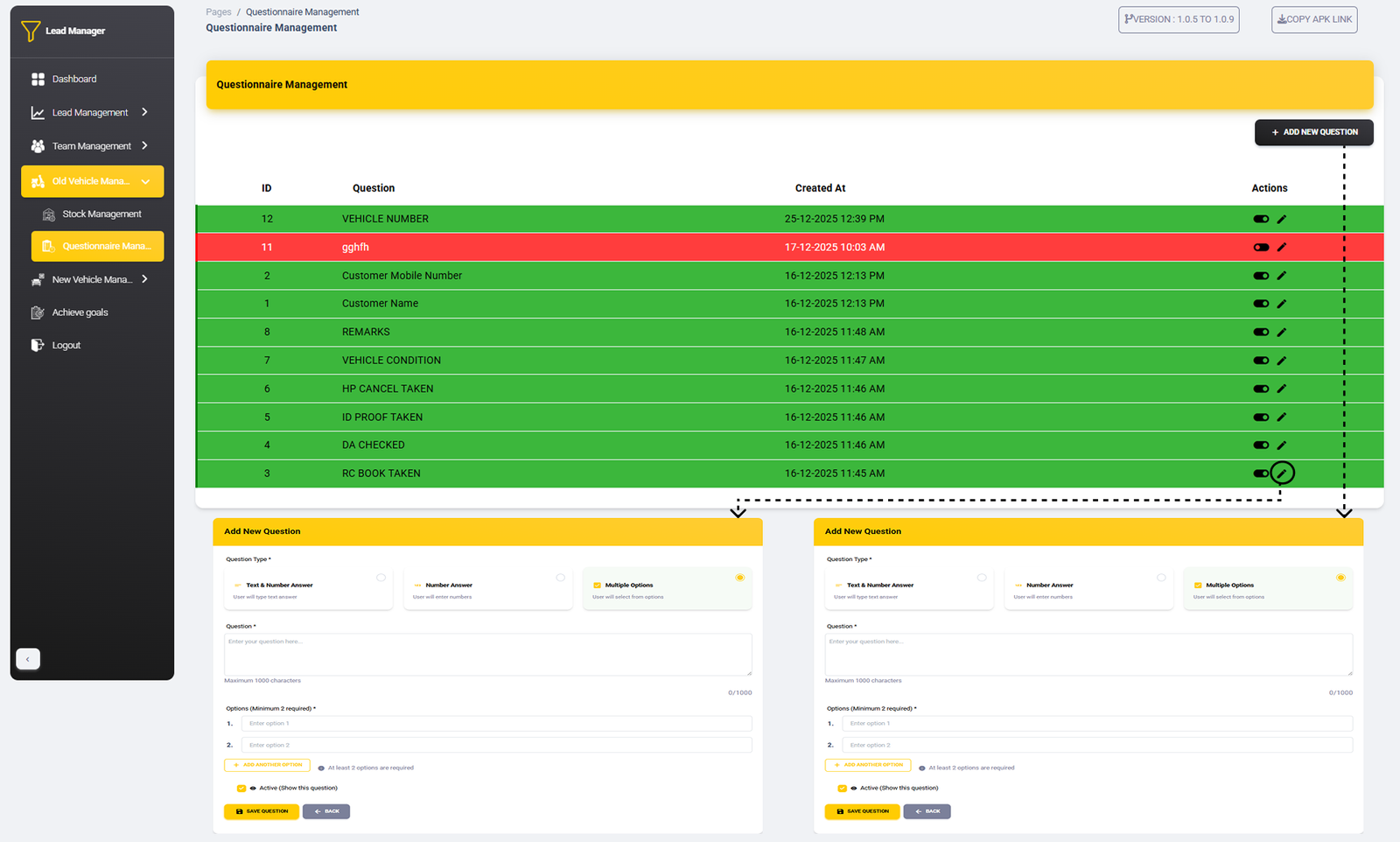
Questions List
- Active Status: ✅ (Active) / ❌ (Inactive)
Add New Question
- Question Type: Three types available:
- Text & Number Answer (Free text input)
- Number Answer (Numeric input only)
- Multiple Options (Dropdown selection)
- Question Text: Enter question (max 1000 chars)
- Options: For multiple choice questions (min 2
required)
- Active Toggle: Show/hide question
Question Types Details
Text & Number Answer
Users can type any text or numbers as answer
Number Answer
Only numeric inputs allowed, validated for numbers
Multiple Options
Users select from predefined dropdown options
Integration with Old Vehicle Management
These questions appear when adding old vehicle entries:
- Active questions appear in old vehicle inquiry forms
- Inactive questions are hidden from users
- Question types determine input validation
- Multiple choice questions show as dropdowns
- Responses are stored with each vehicle entry
Usage: Create custom questions here that will appear in the old
vehicle
inquiry forms. Use the Active toggle to show/hide questions as needed.
Stock Management
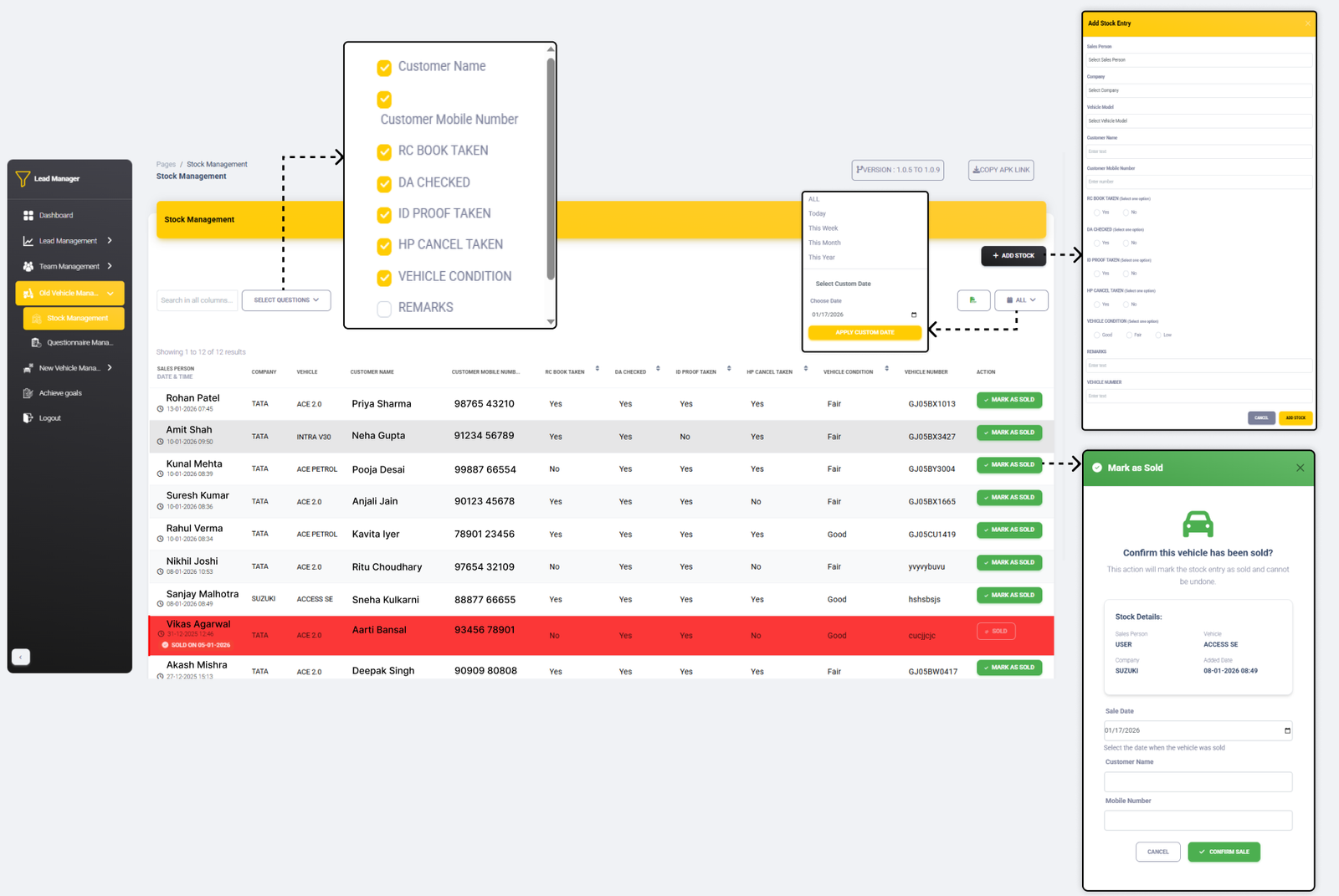
Stock Management Interface
Stock Table Features
- Custom Column Selection: Choose which columns to
display
- Date Range Filter: Filter by
Today/Week/Month/Year/Custom dates
- Column Sort: Sort by any column
ascending/descending
- Excel Export: Download table data as Excel file
- Search: Global search across all columns
Stock Actions
- Status Indicators: Shows sold/available status
Add Stock Entry Form
Mark as Sold Process
When marking a vehicle as sold:
- Confirmation Dialog: "Confirm this vehicle has been
sold?"
- Sale Date Selection: Choose actual sale date
- Stock Details: Shows pre-sale information
Note: The stock management system tracks both available and
sold vehicles.
Use the custom column selection to focus on relevant data and export filtered
results as Excel
files for reporting purposes.
New Vehicle Questionnaire Management
New Vehicle Questionnaire Interface
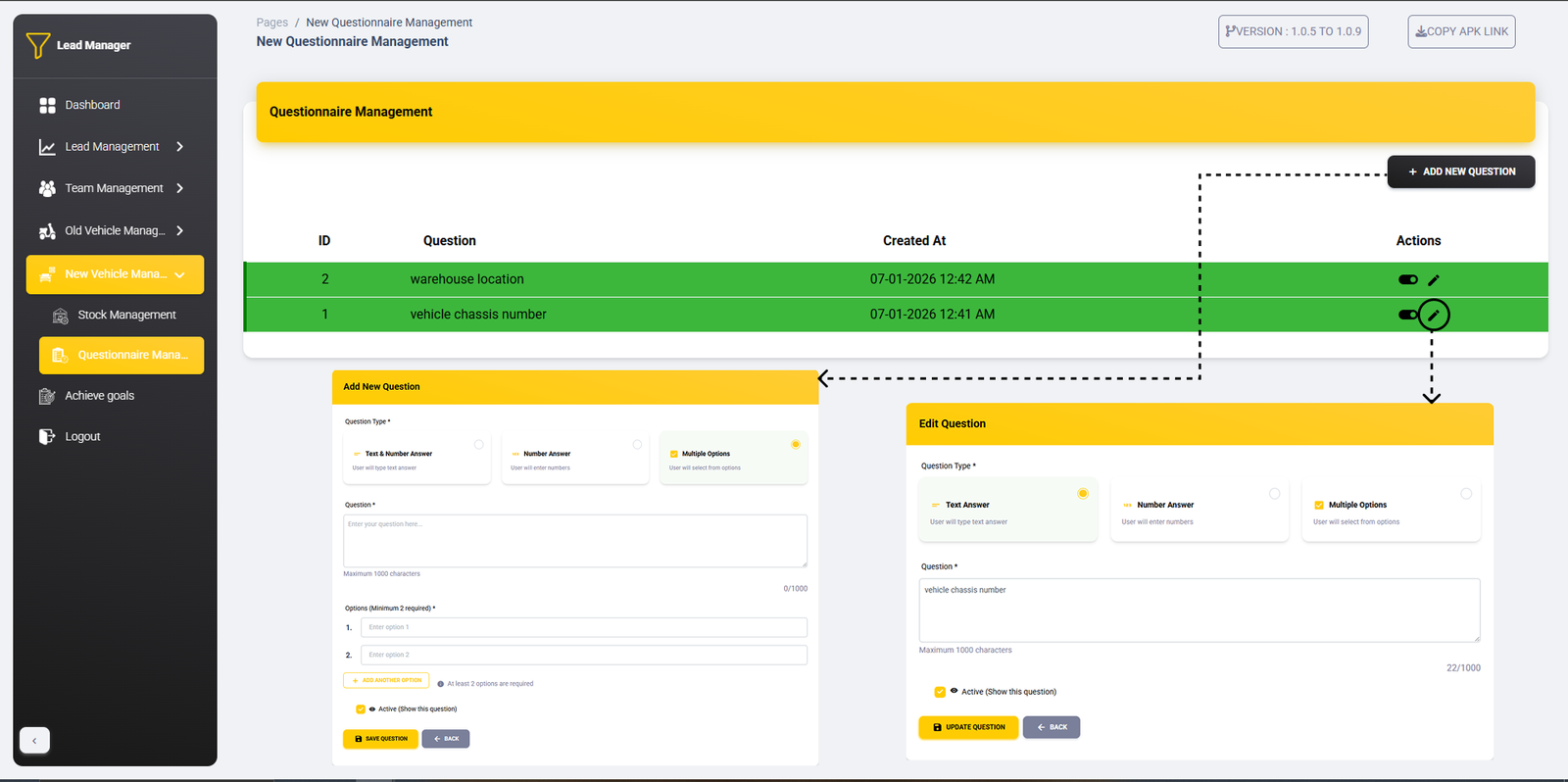
Questions List
- Active Status: ✅ (Active) / ❌ (Inactive)
Add New Question
- Question Type: Three types available:
- Text & Number Answer (Free text input)
- Number Answer (Numeric input only)
- Multiple Options (Dropdown selection)
- Question Text: Enter question (max 1000 characters)
- Options: For multiple choice questions (minimum 2
required)
- Active Toggle: "Active (Show this question)"
checkbox
Question Types Details
Text & Number Answer
Users can type any text or numbers as answer (e.g., warehouse
location)
Number Answer
Only numeric inputs allowed (e.g., vehicle chassis number)
Multiple Options
Users select from predefined dropdown options (requires minimum 2
options)
Integration with New Vehicle Management
These questions appear when adding new vehicle entries:
- Active questions appear in new vehicle inquiry forms
- Vehicle chassis number, warehouse location, etc.
- Inactive questions are hidden from add stock option
- Question types determine input validation
- Multiple choice questions show as dropdowns with add option feature
Note: This questionnaire is specifically for new vehicle
management.
Create custom questions here that will appear in the new vehicle inquiry forms.
New Vehicle Stock Management
New Vehicle Stock Interface
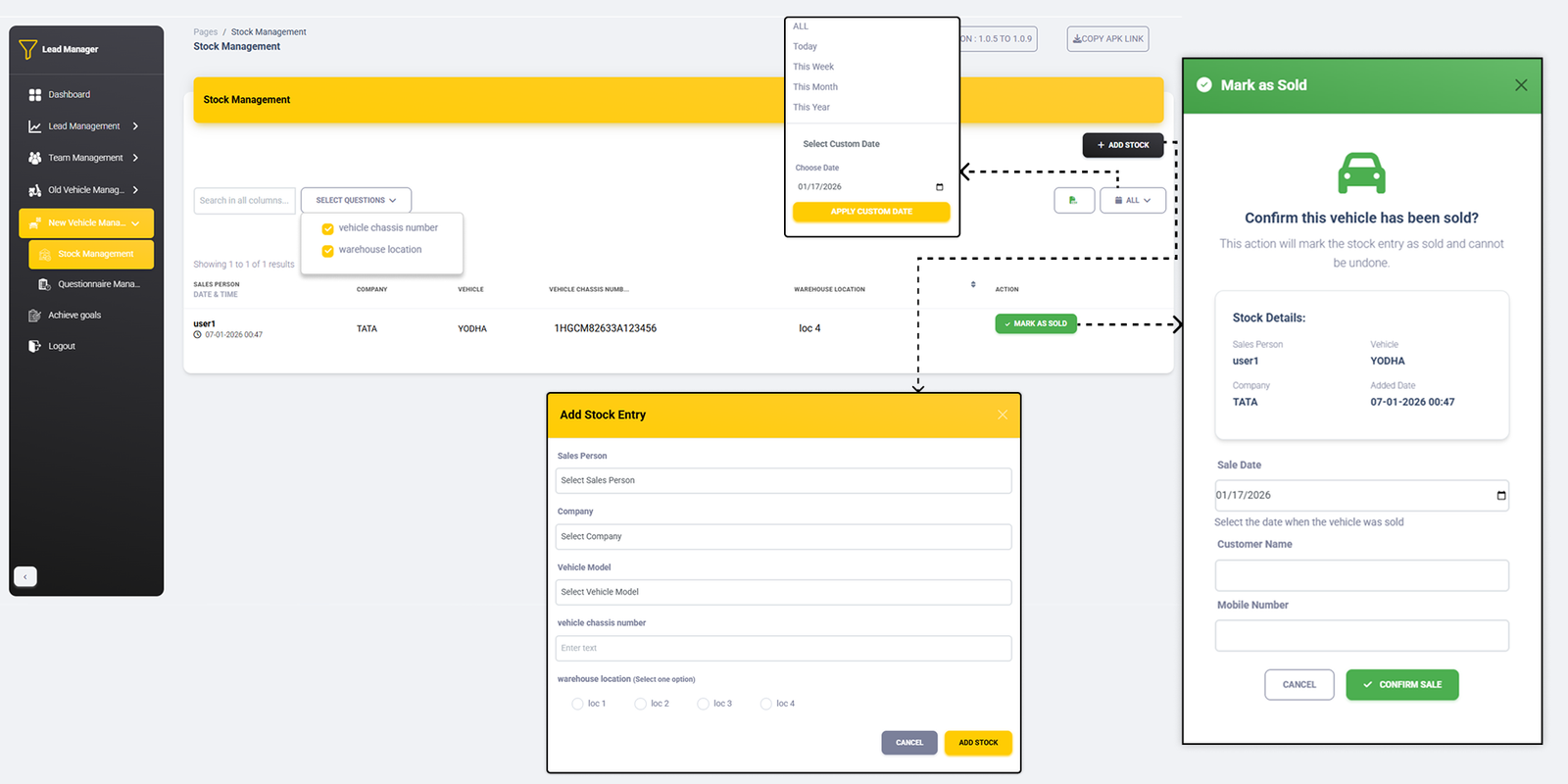
Key Feature
Important Difference: The "Mark as Sold" action can be
performed by salespersons directly
from the mobile app for new vehicle stock.
Stock Table Features
- Custom Column Selection: Choose which columns to
display
- Date Range Filter: Filter by
Today/Week/Month/Year/Custom dates
- Column Sort: Sort by any column
ascending/descending
- Excel Export: Download table data as Excel file
- Search: Global search across all columns
Mobile App Integration
- Salesperson Access: Salespersons can mark new
vehicles as sold directly from mobile app
- Permission Based: Salespersons have sell permission
for new vehicles
Add New Vehicle Stock Entry
Salesperson Mark as Sold (Mobile App)
Salespersons can mark new vehicles as sold directly from mobile app:
- Mobile Access: Salespersons access through mobile app
- Stock List: View assigned new vehicle stock
- Mark Sold: One-tap sold status update
Note: Salespersons can update sale status directly from the
mobile application,
enabling faster sales processing and real-time inventory updates.
Target Settings & Distribution
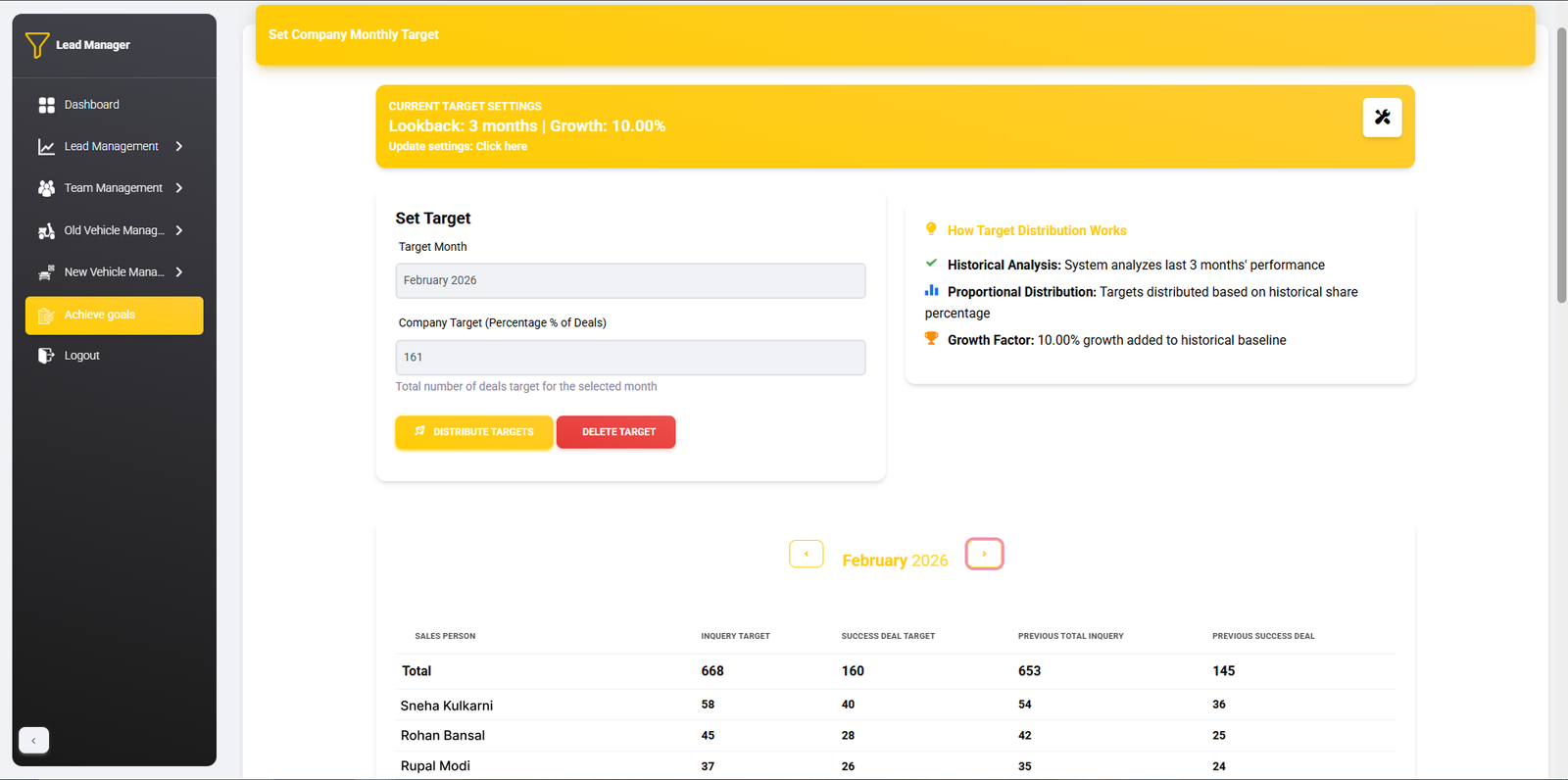
Target Distribution Settings
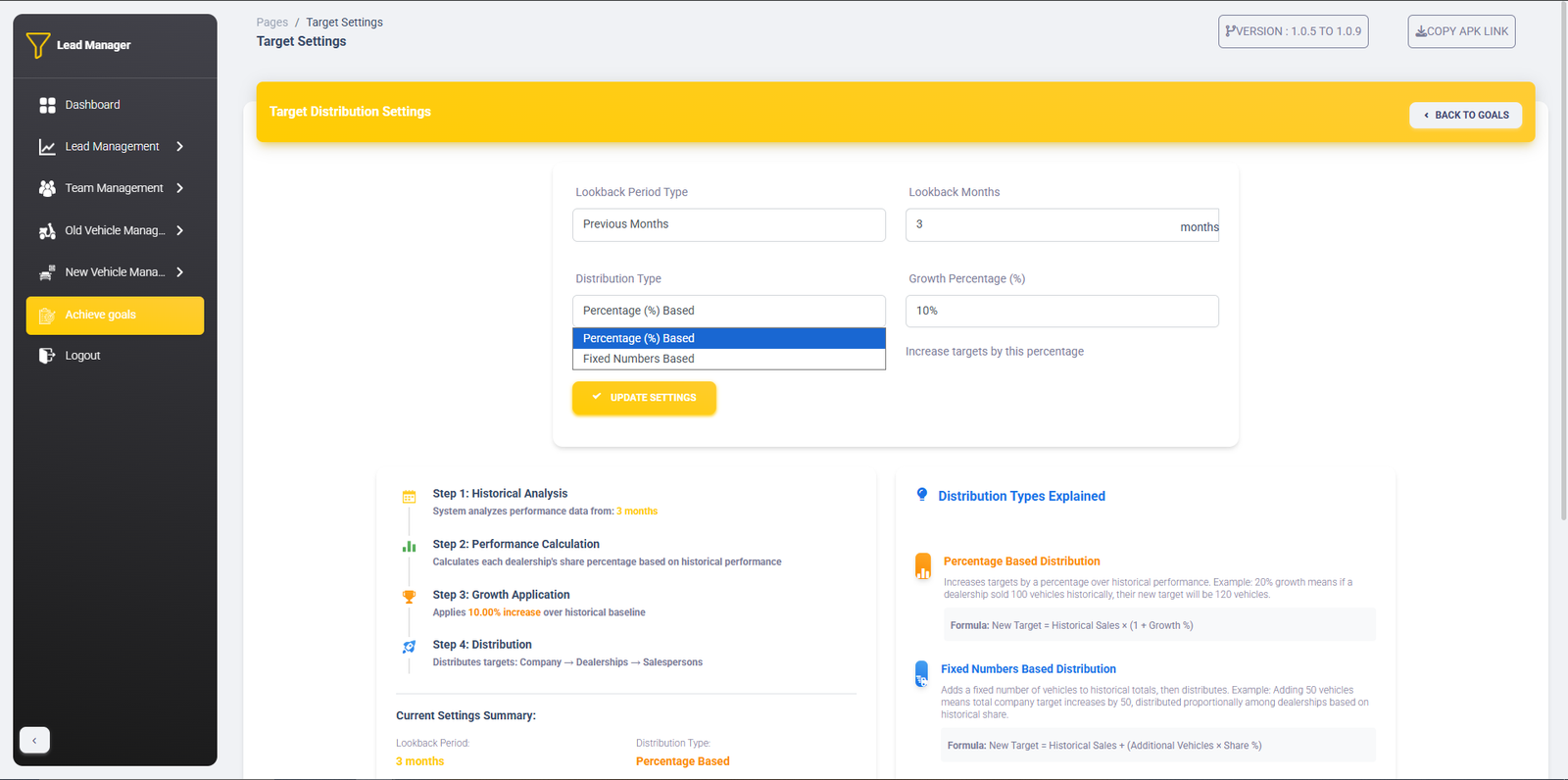
Distribution Settings
- Lookback Period Type: Previous Months (e.g., 3
months)
- Distribution Type: Two options:
- Percentage (%) Based
- Fixed Numbers Based
Distribution Process
- Step 1: Historical Analysis (3 months data)
- Step 2: Performance Calculation (dealership share
%)
- Step 3: Growth Application (10.00% increase)
- Step 4: Distribution
Set Company Monthly Target
- Target Month: Select month (e.g., February 2026)
- Company Target: Total number of deals target
Target Distribution Table
The system shows detailed breakdown for each salesperson:
- Sales Person: Individual sales staff
- Inquiry Target: Number of inquiries to generate
- Success Deal Target: Number of deals to close
- Previous Total Inquiry: Historical inquiry performance
- Previous Success Deal: Historical deal closure
performance
- Totals: Company-wide summary at top
Automated Distribution: The system automatically analyzes
historical performance
from the specified lookback period and distributes targets proportionally among
dealerships and
salespersons, applying the configured growth percentage.
Follow-up Notes Interface
Notes Listing
Add New Note
Integration with Inquiries
Follow-up notes are linked to customer inquiries in the app:
- When adding a new inquiry, select from existing follow-up notes
- Pre-defined notes save time and ensure consistency
- Notes appear in inquiry details for reference
- Helps maintain standardized communication
Closed Deal Reasons Interface
Reasons List
Add New Reason
Integration with Deal Closure
These reasons are used when closing deals in the app:
- When marking a deal as closed, select from this reason list
- Helps categorize why deals were unsuccessful
- Provides analytics on common closure reasons
- Improves sales strategy based on failure analysis
Vehicle Management
Vehicle Management Interface
Vehicle List
Add New Vehicle
- Company Selection: Choose from existing companies
or add new
- Add New Company Option: Option to add completely
new company
- Model Name: Enter new vehicle model
- Active Status: Toggle to activate/deactivate
vehicle
Integration with Inquiries
Vehicles added here appear in the app when creating new inquiries:
- Vehicle dropdown in inquiry form shows all active vehicles
- Inactive vehicles (shown in red) are not available for selection
- Newly added vehicles immediately appear in the dropdown
- Vehicle selection is required when creating new customer inquiries
Company Management
Two ways to manage vehicle companies:
- Select Existing: Choose from pre-defined companies in
dropdown
- Add New Company: Option to add completely new vehicle
company
- New companies added appear immediately in the company dropdown
- Companies can have multiple vehicle models
Note: Inactive vehicles are displayed in red color and are not
available
for selection when creating new inquiries in the mobile app.
Dealership Management
Dealership Management Interface
Dealership List
- Dealers: Assigned salespersons
Add New Dealership
- Department: Type new name or select from
dropdown
- Company Name: Select from vehicle company dropdown
Dealer Assignment Features
Assign salespersons as dealers to dealerships:
- From dealership list, assign salespersons as dealers
- Dropdown shows all salespersons from selected company
- When salesperson is made dealer, they get dealer login credentials
- Dealers can login to the system with their credentials
- Dealers see dealership-specific data in their dashboard
Important: When a salesperson is assigned as a dealer to a
dealership,
they receive dealer-level access with login credentials. Dealers see only their
assigned
dealership's data in the application.
User Management
User Management Interface
Users List
- Actions: Lock/unlock user accounts (🔒)
Create New User
- Dealership: Select from dropdown
Admin-Only Access
Important: User management is restricted to administrators
only:
- Only admin users can add new salespersons
- Only admin users can edit or delete user accounts
- Only admin users can lock/unlock user accounts
- Dealers and salespersons cannot access this section
Account Management
Administrators have full control over user accounts:
- Lock/Unlock: Disable or enable user login
- Password Reset: Reset user passwords if needed
- Dealership Assignment: Assign users to specific
dealerships
- User Permissions: Control access levels
Restricted Access: This section is accessible only to
administrators.
Dealers and salespersons cannot add, edit, or delete user accounts.
Questionnaire Management
Questionnaire Interface
Questions List
- Active Status: ✅ (Active) / ❌ (Inactive)
Add New Question
- Question Type: Three types available:
- Text & Number Answer (Free text input)
- Number Answer (Numeric input only)
- Multiple Options (Dropdown selection)
- Question Text: Enter question (max 1000 chars)
- Options: For multiple choice questions (min 2
required)
- Active Toggle: Show/hide question
Question Types Details
Text & Number Answer
Users can type any text or numbers as answer
Number Answer
Only numeric inputs allowed, validated for numbers
Multiple Options
Users select from predefined dropdown options
Integration with Old Vehicle Management
These questions appear when adding old vehicle entries:
- Active questions appear in old vehicle inquiry forms
- Inactive questions are hidden from users
- Question types determine input validation
- Multiple choice questions show as dropdowns
- Responses are stored with each vehicle entry
Usage: Create custom questions here that will appear in the old
vehicle
inquiry forms. Use the Active toggle to show/hide questions as needed.
Stock Management
Stock Management Interface
Stock Table Features
- Custom Column Selection: Choose which columns to
display
- Date Range Filter: Filter by
Today/Week/Month/Year/Custom dates
- Column Sort: Sort by any column
ascending/descending
- Excel Export: Download table data as Excel file
- Search: Global search across all columns
Stock Actions
- Status Indicators: Shows sold/available status
Add Stock Entry Form
Mark as Sold Process
When marking a vehicle as sold:
- Confirmation Dialog: "Confirm this vehicle has been
sold?"
- Sale Date Selection: Choose actual sale date
- Stock Details: Shows pre-sale information
Note: The stock management system tracks both available and
sold vehicles.
Use the custom column selection to focus on relevant data and export filtered
results as Excel
files for reporting purposes.
New Vehicle Questionnaire Management
New Vehicle Questionnaire Interface
Questions List
- Active Status: ✅ (Active) / ❌ (Inactive)
Add New Question
- Question Type: Three types available:
- Text & Number Answer (Free text input)
- Number Answer (Numeric input only)
- Multiple Options (Dropdown selection)
- Question Text: Enter question (max 1000 characters)
- Options: For multiple choice questions (minimum 2
required)
- Active Toggle: "Active (Show this question)"
checkbox
Question Types Details
Text & Number Answer
Users can type any text or numbers as answer (e.g., warehouse
location)
Number Answer
Only numeric inputs allowed (e.g., vehicle chassis number)
Multiple Options
Users select from predefined dropdown options (requires minimum 2
options)
Integration with New Vehicle Management
These questions appear when adding new vehicle entries:
- Active questions appear in new vehicle inquiry forms
- Vehicle chassis number, warehouse location, etc.
- Inactive questions are hidden from add stock option
- Question types determine input validation
- Multiple choice questions show as dropdowns with add option feature
Note: This questionnaire is specifically for new vehicle
management.
Create custom questions here that will appear in the new vehicle inquiry forms.
New Vehicle Stock Management
New Vehicle Stock Interface
Key Feature
Important Difference: The "Mark as Sold" action can be
performed by salespersons directly
from the mobile app for new vehicle stock.
Stock Table Features
- Custom Column Selection: Choose which columns to
display
- Date Range Filter: Filter by
Today/Week/Month/Year/Custom dates
- Column Sort: Sort by any column
ascending/descending
- Excel Export: Download table data as Excel file
- Search: Global search across all columns
Mobile App Integration
- Salesperson Access: Salespersons can mark new
vehicles as sold directly from mobile app
- Permission Based: Salespersons have sell permission
for new vehicles
Add New Vehicle Stock Entry
Salesperson Mark as Sold (Mobile App)
Salespersons can mark new vehicles as sold directly from mobile app:
- Mobile Access: Salespersons access through mobile app
- Stock List: View assigned new vehicle stock
- Mark Sold: One-tap sold status update
Note: Salespersons can update sale status directly from the
mobile application,
enabling faster sales processing and real-time inventory updates.
Target Settings & Distribution
Target Distribution Settings
Distribution Settings
- Lookback Period Type: Previous Months (e.g., 3
months)
- Distribution Type: Two options:
- Percentage (%) Based
- Fixed Numbers Based
Distribution Process
- Step 1: Historical Analysis (3 months data)
- Step 2: Performance Calculation (dealership share
%)
- Step 3: Growth Application (10.00% increase)
- Step 4: Distribution
Set Company Monthly Target
- Target Month: Select month (e.g., February 2026)
- Company Target: Total number of deals target
Target Distribution Table
The system shows detailed breakdown for each salesperson:
- Sales Person: Individual sales staff
- Inquiry Target: Number of inquiries to generate
- Success Deal Target: Number of deals to close
- Previous Total Inquiry: Historical inquiry performance
- Previous Success Deal: Historical deal closure
performance
- Totals: Company-wide summary at top
Automated Distribution: The system automatically analyzes
historical performance
from the specified lookback period and distributes targets proportionally among
dealerships and
salespersons, applying the configured growth percentage.
Vehicle Management Interface
Vehicle List
Add New Vehicle
- Company Selection: Choose from existing companies or add new
- Add New Company Option: Option to add completely new company
- Model Name: Enter new vehicle model
- Active Status: Toggle to activate/deactivate vehicle
Integration with Inquiries
Vehicles added here appear in the app when creating new inquiries:
- Vehicle dropdown in inquiry form shows all active vehicles
- Inactive vehicles (shown in red) are not available for selection
- Newly added vehicles immediately appear in the dropdown
- Vehicle selection is required when creating new customer inquiries
Company Management
Two ways to manage vehicle companies:
- Select Existing: Choose from pre-defined companies in dropdown
- Add New Company: Option to add completely new vehicle company
- New companies added appear immediately in the company dropdown
- Companies can have multiple vehicle models
Dealership Management Interface
Dealership List
- Dealers: Assigned salespersons
Add New Dealership
- Department: Type new name or select from dropdown
- Company Name: Select from vehicle company dropdown
Dealer Assignment Features
Assign salespersons as dealers to dealerships:
- From dealership list, assign salespersons as dealers
- Dropdown shows all salespersons from selected company
- When salesperson is made dealer, they get dealer login credentials
- Dealers can login to the system with their credentials
- Dealers see dealership-specific data in their dashboard
User Management Interface
Users List
- Actions: Lock/unlock user accounts (🔒)
Create New User
- Dealership: Select from dropdown
Admin-Only Access
Important: User management is restricted to administrators only:
- Only admin users can add new salespersons
- Only admin users can edit or delete user accounts
- Only admin users can lock/unlock user accounts
- Dealers and salespersons cannot access this section
Account Management
Administrators have full control over user accounts:
- Lock/Unlock: Disable or enable user login
- Password Reset: Reset user passwords if needed
- Dealership Assignment: Assign users to specific dealerships
- User Permissions: Control access levels
Questionnaire Interface
Questions List
- Active Status: ✅ (Active) / ❌ (Inactive)
Add New Question
- Question Type: Three types available:
- Text & Number Answer (Free text input)
- Number Answer (Numeric input only)
- Multiple Options (Dropdown selection)
- Question Text: Enter question (max 1000 chars)
- Options: For multiple choice questions (min 2 required)
- Active Toggle: Show/hide question
Question Types Details
Text & Number Answer
Users can type any text or numbers as answer
Number Answer
Only numeric inputs allowed, validated for numbers
Multiple Options
Users select from predefined dropdown options
Integration with Old Vehicle Management
These questions appear when adding old vehicle entries:
- Active questions appear in old vehicle inquiry forms
- Inactive questions are hidden from users
- Question types determine input validation
- Multiple choice questions show as dropdowns
- Responses are stored with each vehicle entry
Stock Management Interface
Stock Table Features
- Custom Column Selection: Choose which columns to display
- Date Range Filter: Filter by Today/Week/Month/Year/Custom dates
- Column Sort: Sort by any column ascending/descending
- Excel Export: Download table data as Excel file
- Search: Global search across all columns
Stock Actions
- Status Indicators: Shows sold/available status
Add Stock Entry Form
Mark as Sold Process
When marking a vehicle as sold:
- Confirmation Dialog: "Confirm this vehicle has been sold?"
- Sale Date Selection: Choose actual sale date
- Stock Details: Shows pre-sale information
New Vehicle Questionnaire Interface
Questions List
- Active Status: ✅ (Active) / ❌ (Inactive)
Add New Question
- Question Type: Three types available:
- Text & Number Answer (Free text input)
- Number Answer (Numeric input only)
- Multiple Options (Dropdown selection)
- Question Text: Enter question (max 1000 characters)
- Options: For multiple choice questions (minimum 2 required)
- Active Toggle: "Active (Show this question)" checkbox
Question Types Details
Text & Number Answer
Users can type any text or numbers as answer (e.g., warehouse location)
Number Answer
Only numeric inputs allowed (e.g., vehicle chassis number)
Multiple Options
Users select from predefined dropdown options (requires minimum 2 options)
Integration with New Vehicle Management
These questions appear when adding new vehicle entries:
- Active questions appear in new vehicle inquiry forms
- Vehicle chassis number, warehouse location, etc.
- Inactive questions are hidden from add stock option
- Question types determine input validation
- Multiple choice questions show as dropdowns with add option feature
New Vehicle Stock Interface
Key Feature
Stock Table Features
- Custom Column Selection: Choose which columns to display
- Date Range Filter: Filter by Today/Week/Month/Year/Custom dates
- Column Sort: Sort by any column ascending/descending
- Excel Export: Download table data as Excel file
- Search: Global search across all columns
Mobile App Integration
- Salesperson Access: Salespersons can mark new vehicles as sold directly from mobile app
- Permission Based: Salespersons have sell permission for new vehicles
Add New Vehicle Stock Entry
Salesperson Mark as Sold (Mobile App)
Salespersons can mark new vehicles as sold directly from mobile app:
- Mobile Access: Salespersons access through mobile app
- Stock List: View assigned new vehicle stock
- Mark Sold: One-tap sold status update
Target Distribution Settings
Distribution Settings
- Lookback Period Type: Previous Months (e.g., 3 months)
- Distribution Type: Two options:
- Percentage (%) Based
- Fixed Numbers Based
Distribution Process
- Step 1: Historical Analysis (3 months data)
- Step 2: Performance Calculation (dealership share %)
- Step 3: Growth Application (10.00% increase)
- Step 4: Distribution
Set Company Monthly Target
- Target Month: Select month (e.g., February 2026)
- Company Target: Total number of deals target
Target Distribution Table
The system shows detailed breakdown for each salesperson:
- Sales Person: Individual sales staff
- Inquiry Target: Number of inquiries to generate
- Success Deal Target: Number of deals to close
- Previous Total Inquiry: Historical inquiry performance
- Previous Success Deal: Historical deal closure performance
- Totals: Company-wide summary at top
Mobile App Overview
App Login System
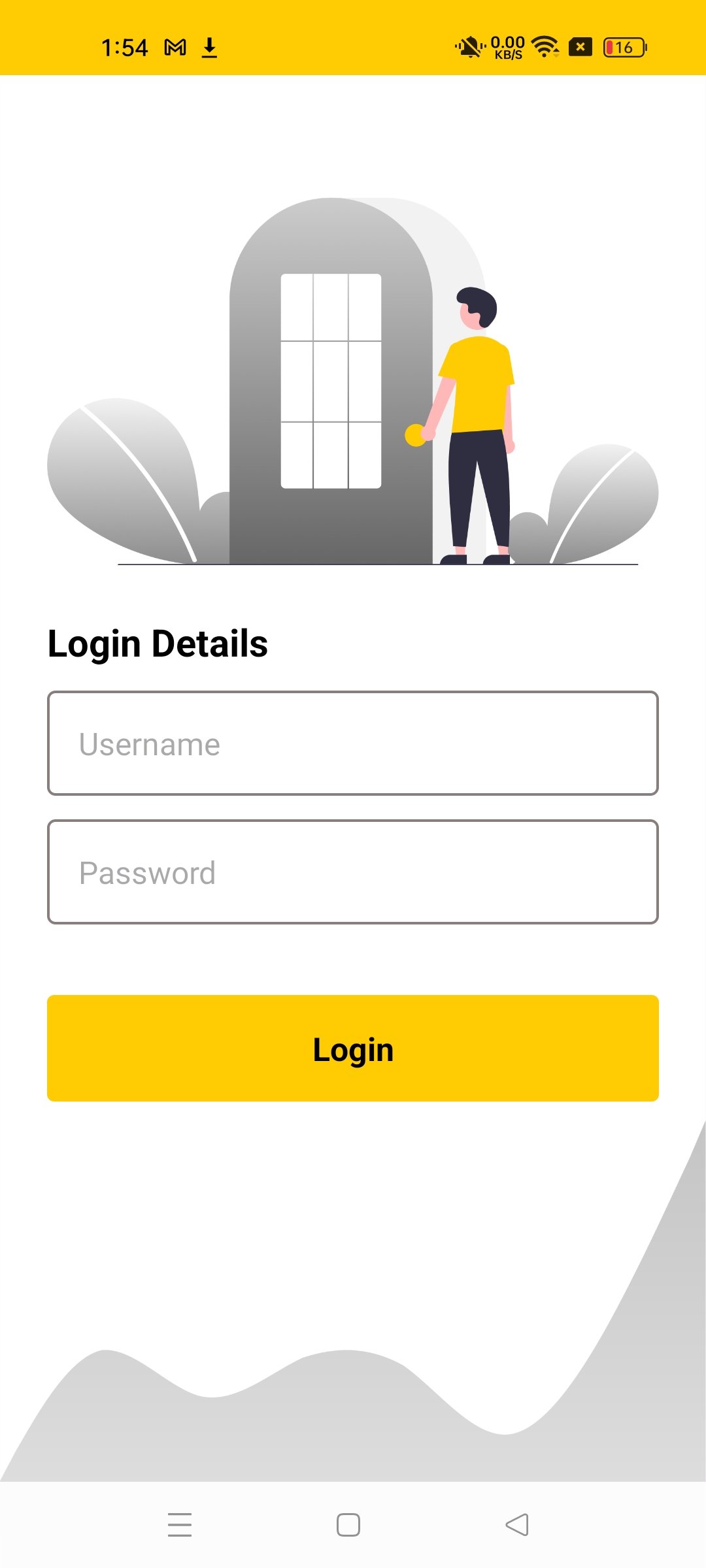
Mobile App Access
Salespersons & Dealers can login to mobile app.
Admin cannot login to mobile app - web only.
App Dashboard
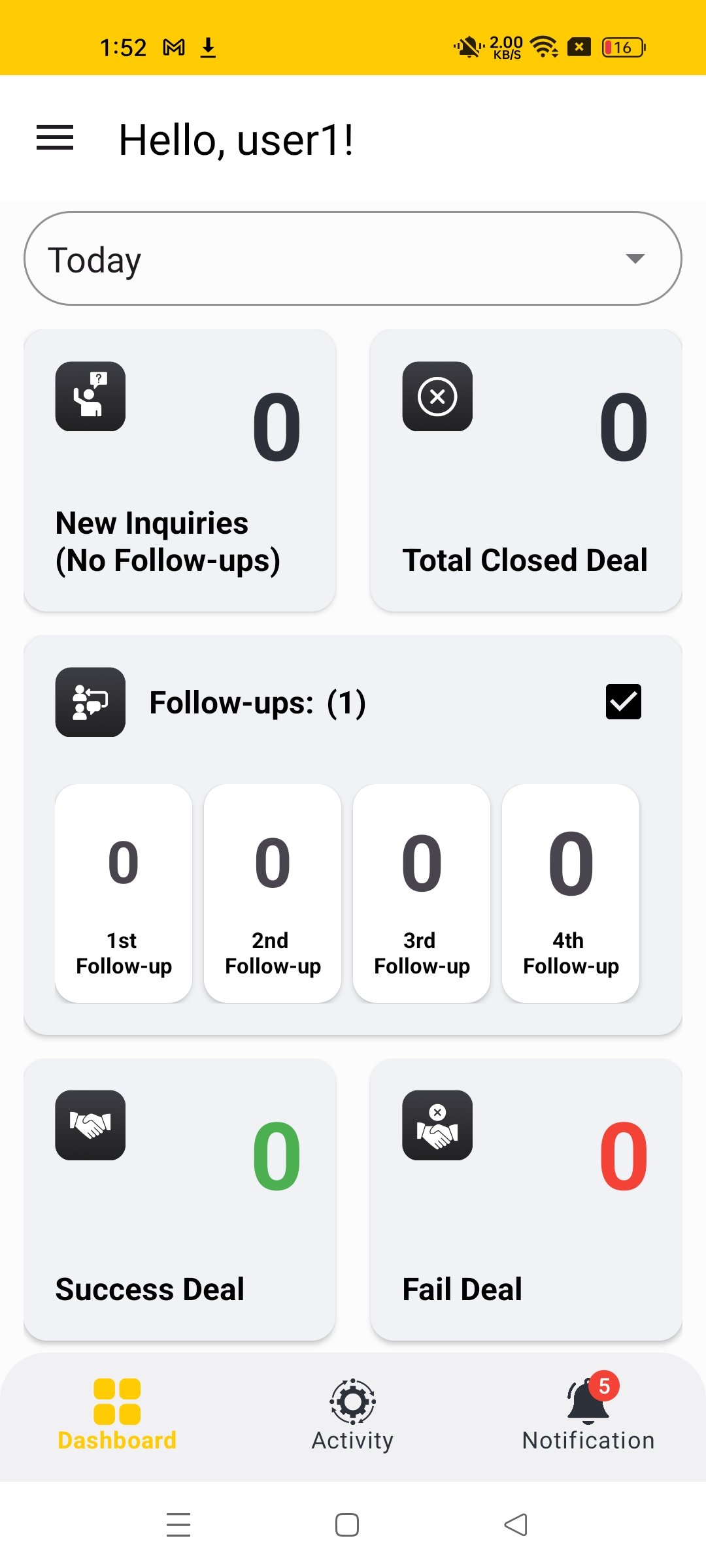
Personal Dashboard
After login, users see their personalized dashboard with:
- Today's new inquiries
- Follow-up counts (1st to 4th)
- Success and fail deal statistics
- Total closed deals
- Navigation menu for features
Lead Management in App
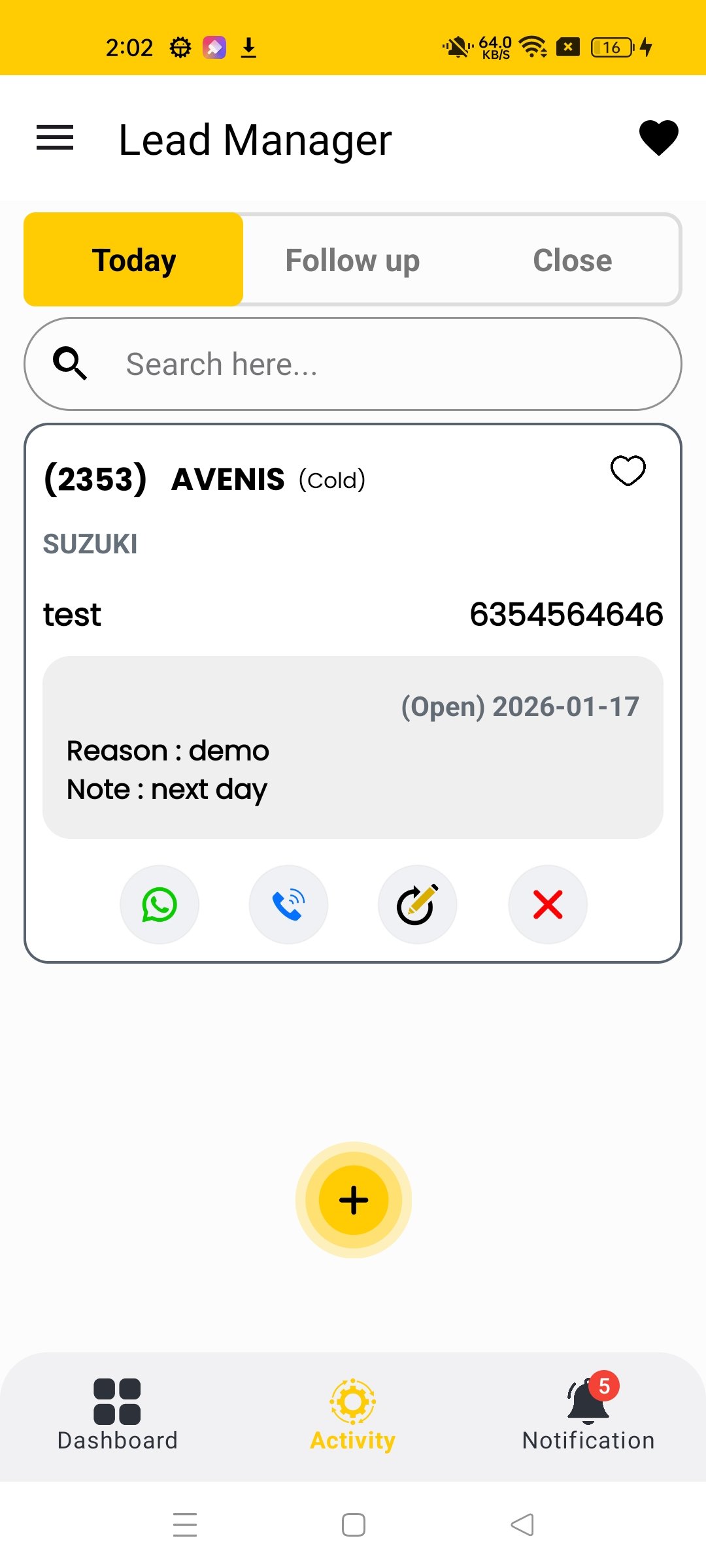
Today's Leads
View today's leads with:
- All leads received today
- Lead details and status
- Search functionality
- Quick action options
Follow-up Leads
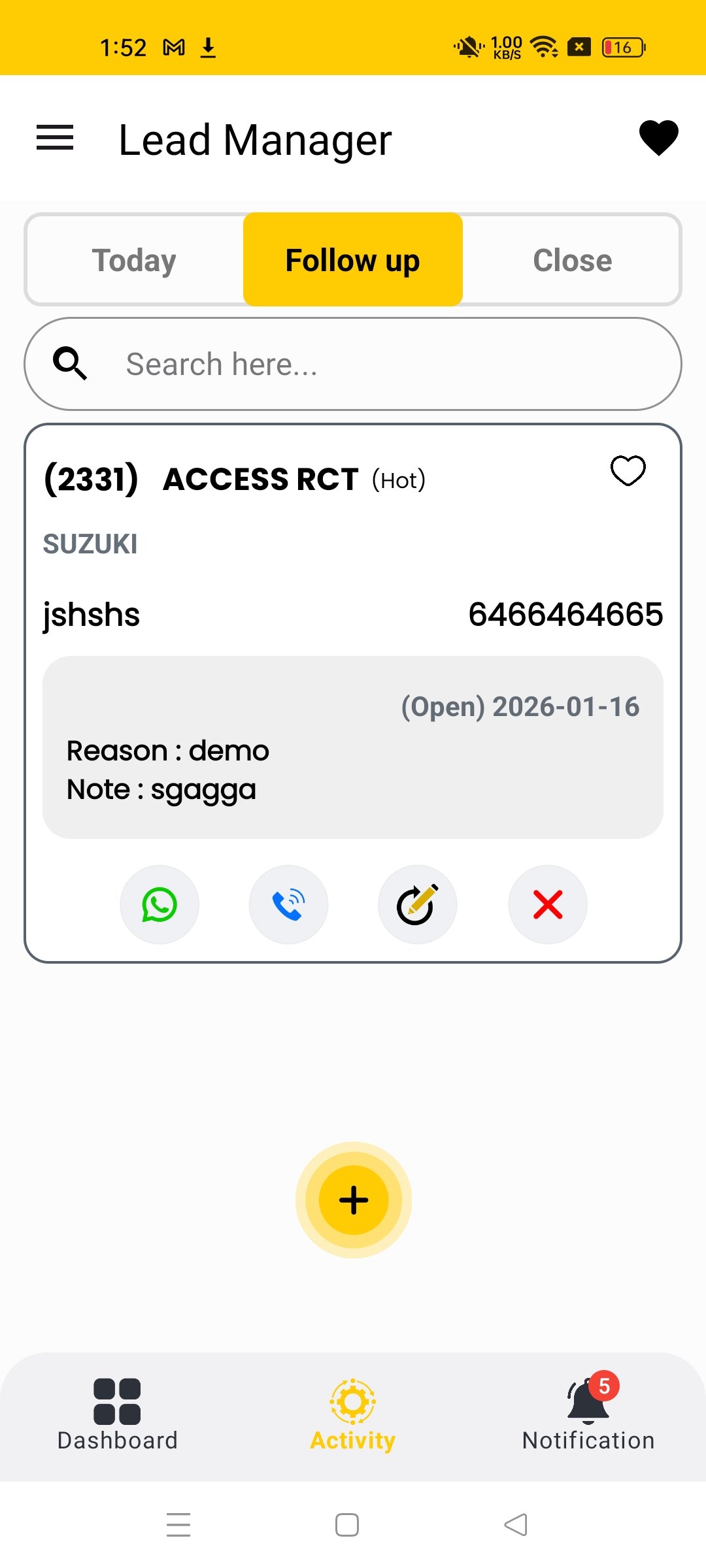
View leads requiring follow-up:
- Leads pending follow-up
- Follow-up dates and notes
- Priority indicators (Hot/Cold)
- Action buttons for follow-up
Closed Leads
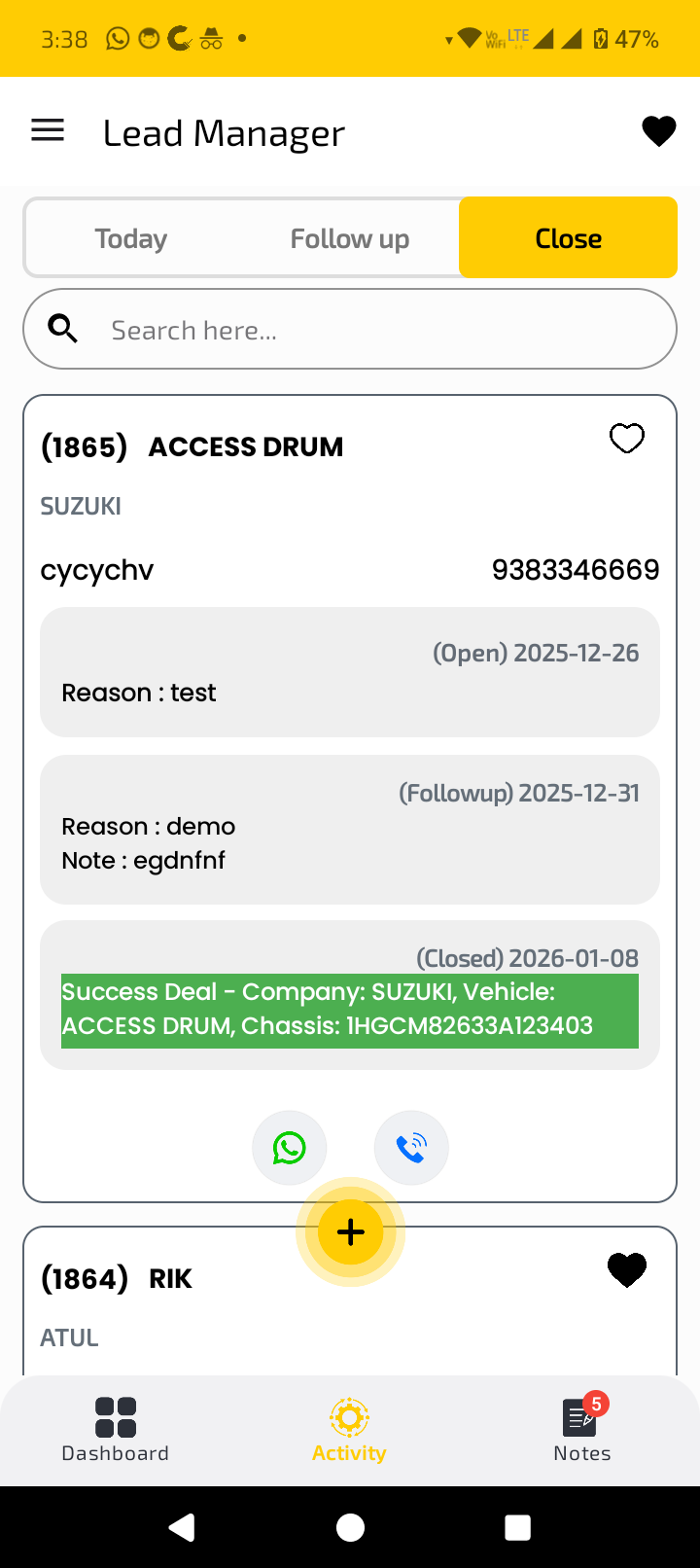
View completed lead history:
- Successfully closed deals
- Complete lead timeline
- Vehicle and company details
- Chassis number information
- Status change history
Add New Inquiry
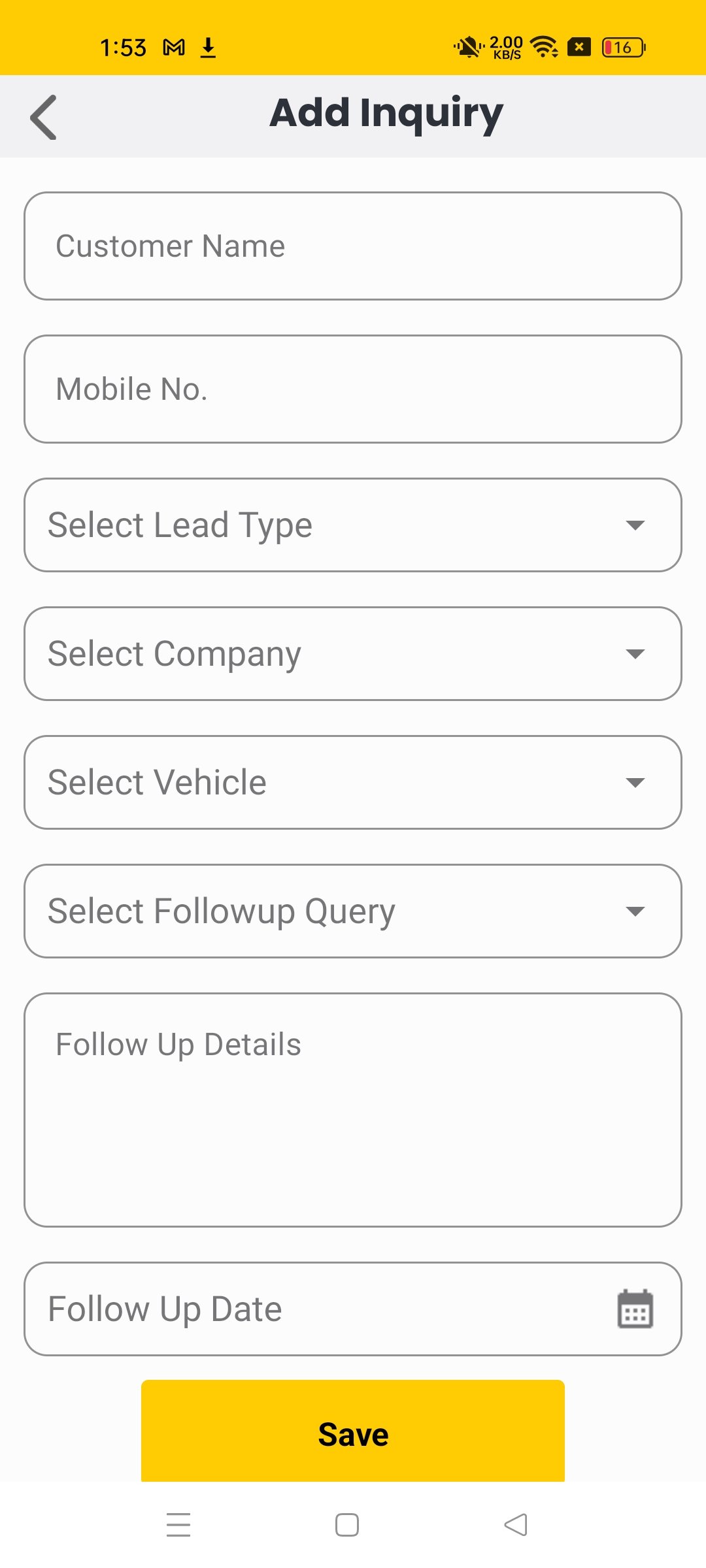
Add new customer inquiries with:
- Customer name and mobile
- Lead type selection
- Company and vehicle selection
- Follow-up query options
- Follow-up date setting
Update Inquiry & Add Follow-up
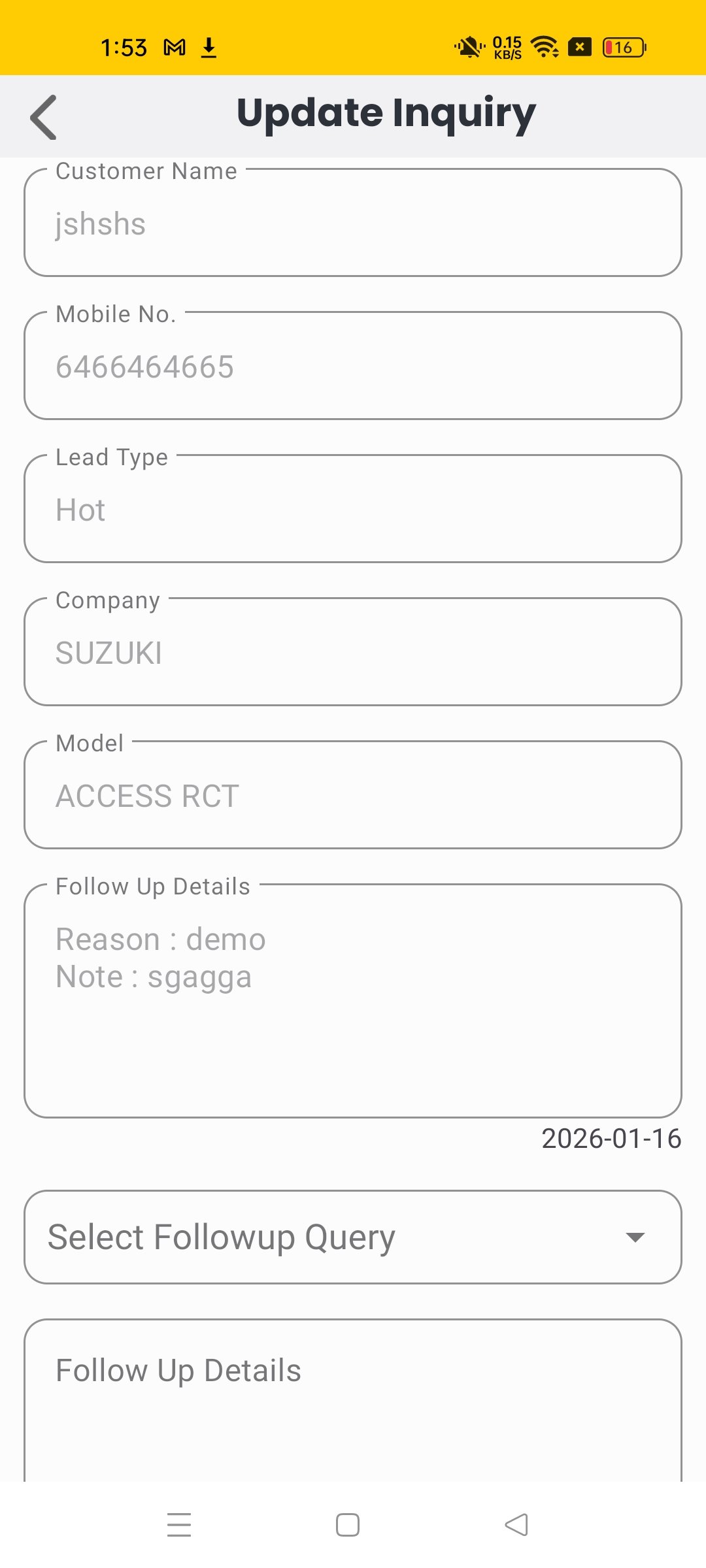
Update existing inquiries and add follow-up notes:
- Edit customer details
- Update lead type and status
- Add multiple follow-up notes
- Track follow-up history
- Set new follow-up dates
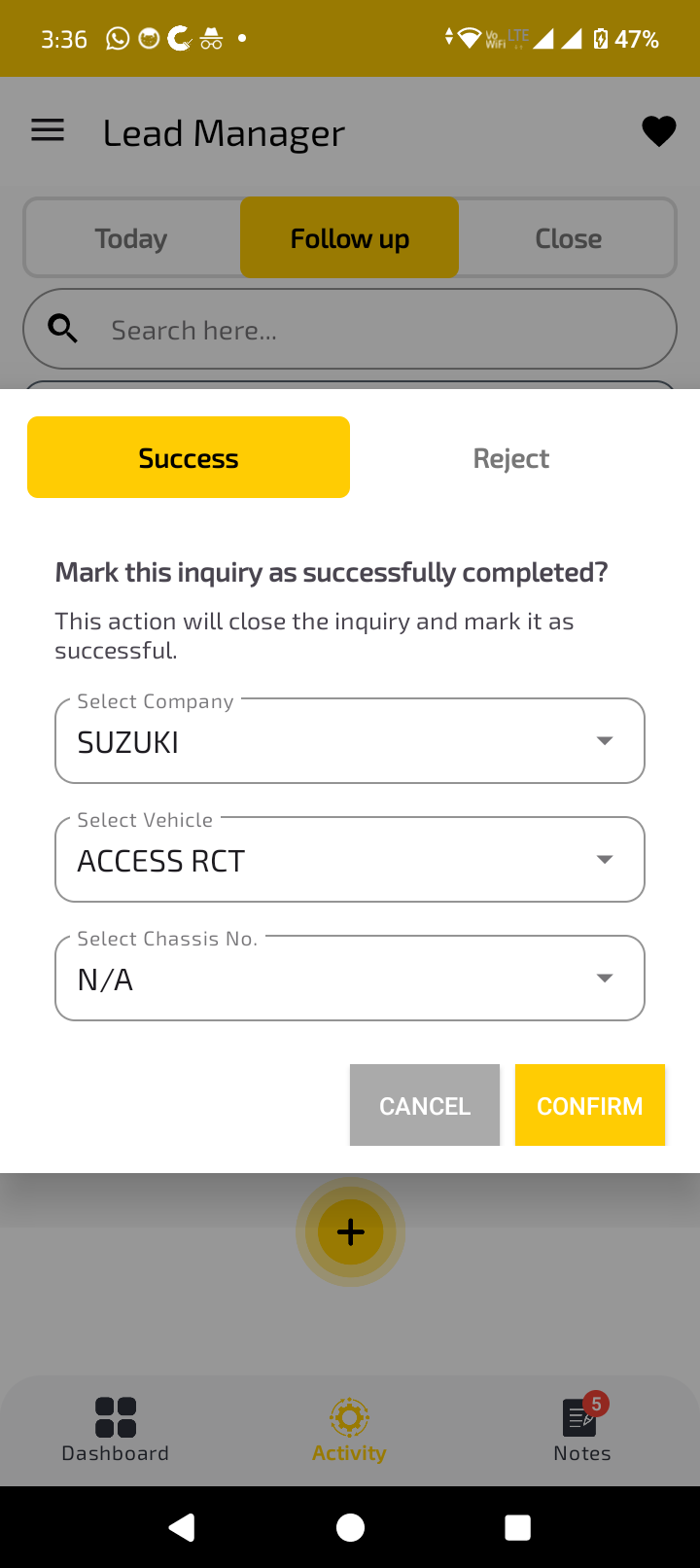
Close Lead Options
Two ways to close a lead:
Success
- Select company and vehicle
- Enter chassis number
- Mark as successfully completed
Reject
- Select rejection reason
- Pre-defined reasons list
- Mark as unsuccessful deal
Notifications in App
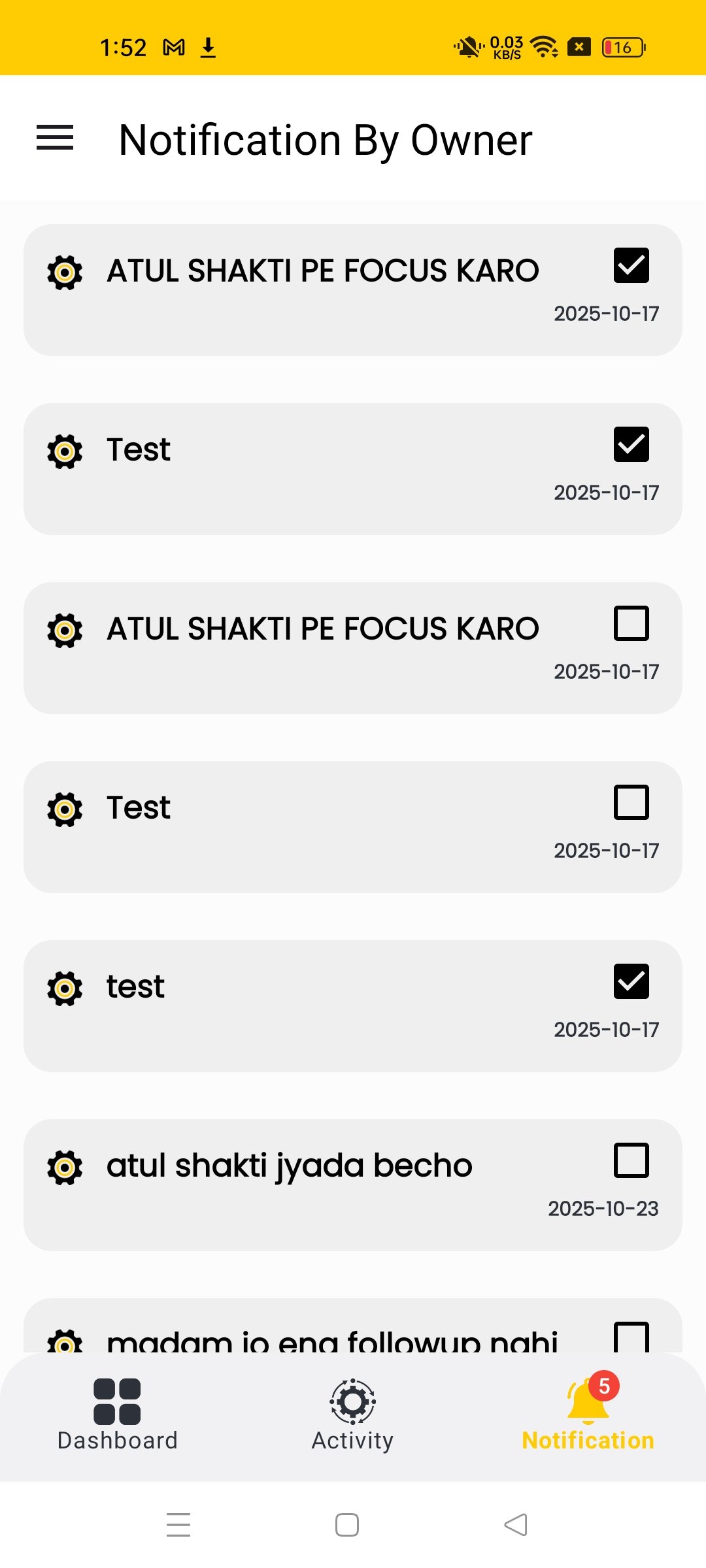
Notifications
View important notifications from admin:
- Priority alerts and messages
- Checkbox for read/unread status
- Date of notification
- Important updates and reminders
Favorites in App
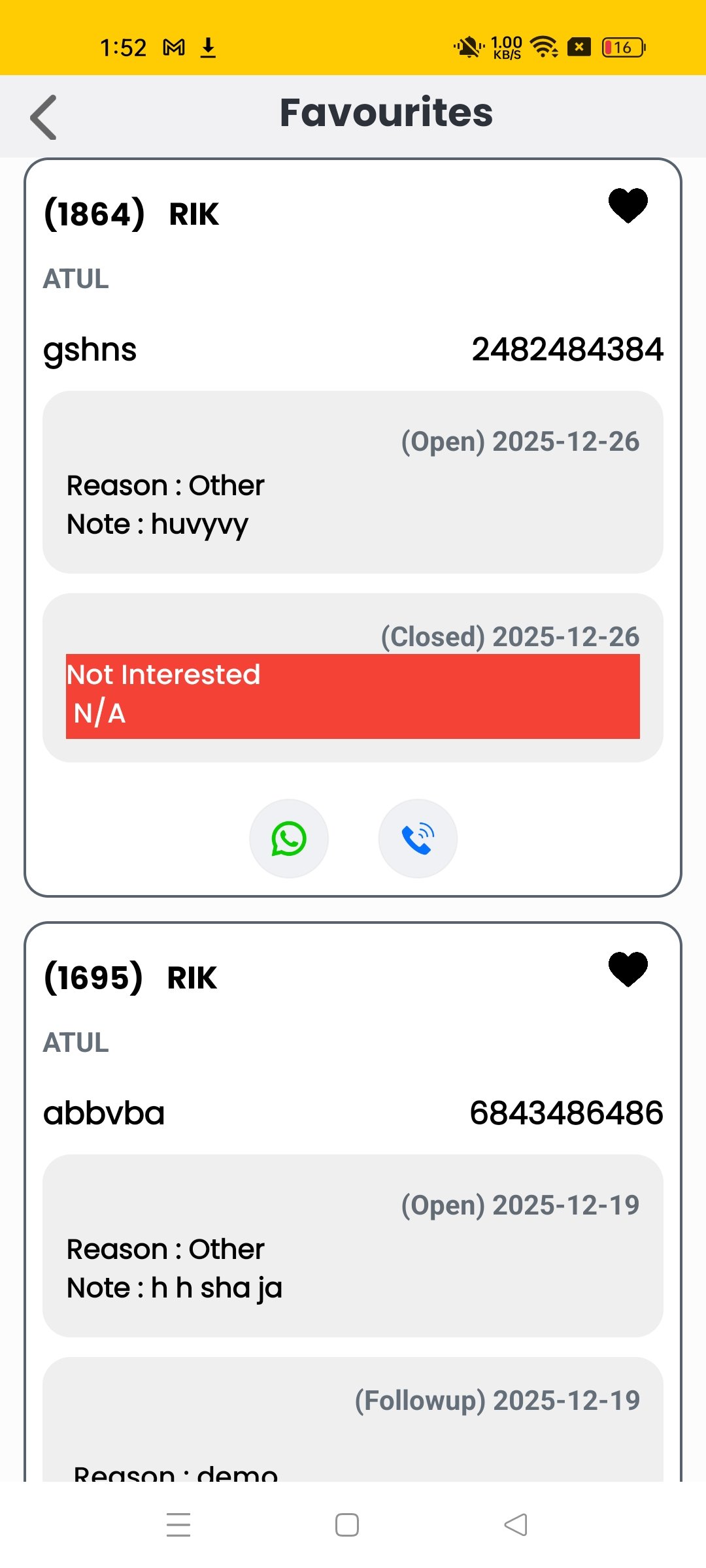
Favorites
Bookmark important leads for quick access:
- Mark leads as favorites
- Quick access to important leads
- View favorite lead history
- Track status changes
App Side Menu
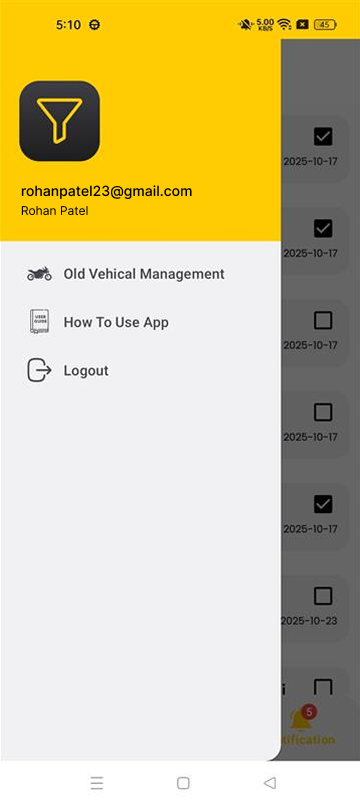
Side Navigation Menu
App navigation options:
- User profile and email display
- Old Vehicle Management
- App usage instructions
- Logout option
Old Vehicle Management
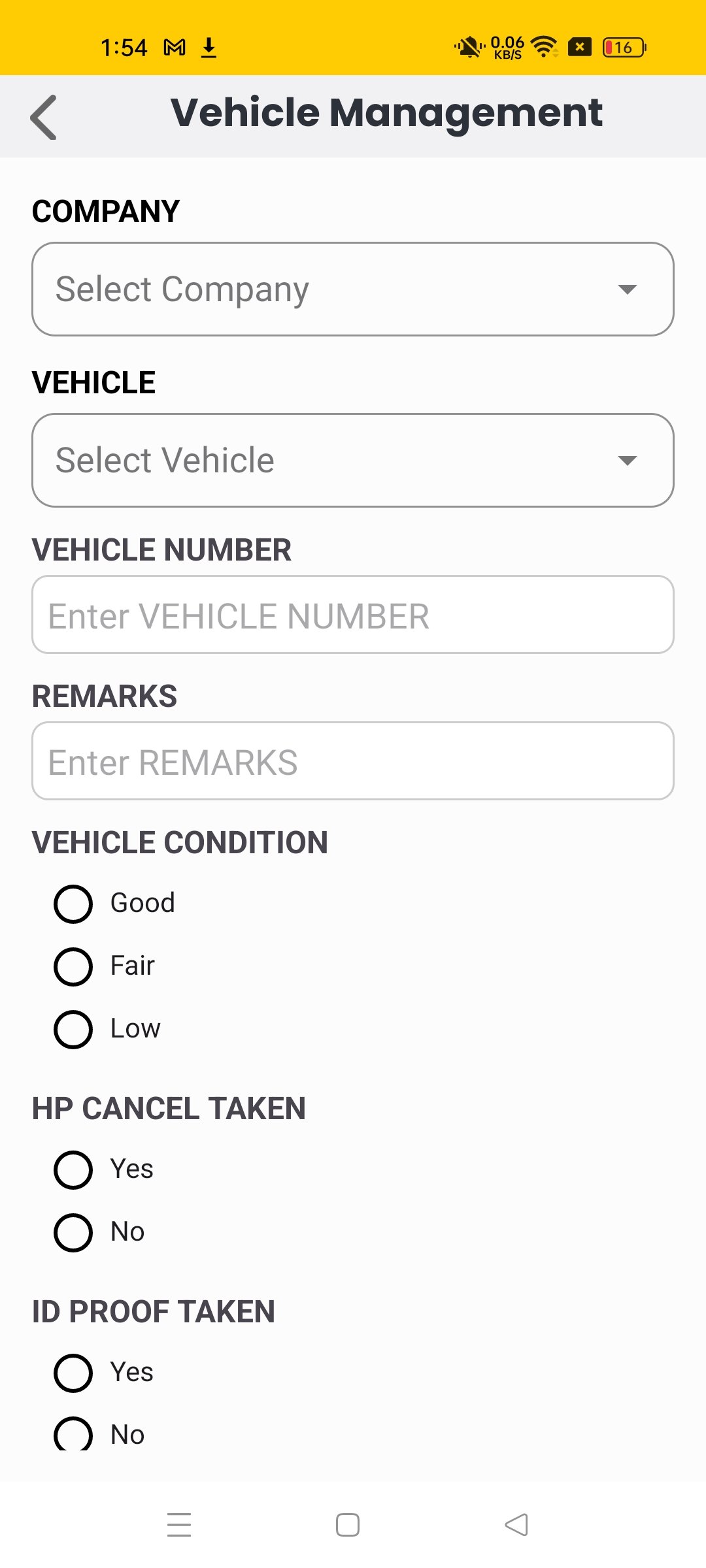
Old Vehicle Entry
Add old vehicle details:
- Select company and vehicle model
- Enter vehicle number
- Add remarks and condition rating
- Document status (HP Cancel, ID Proof)
- Condition options: Good, Fair, Low
Help Guide
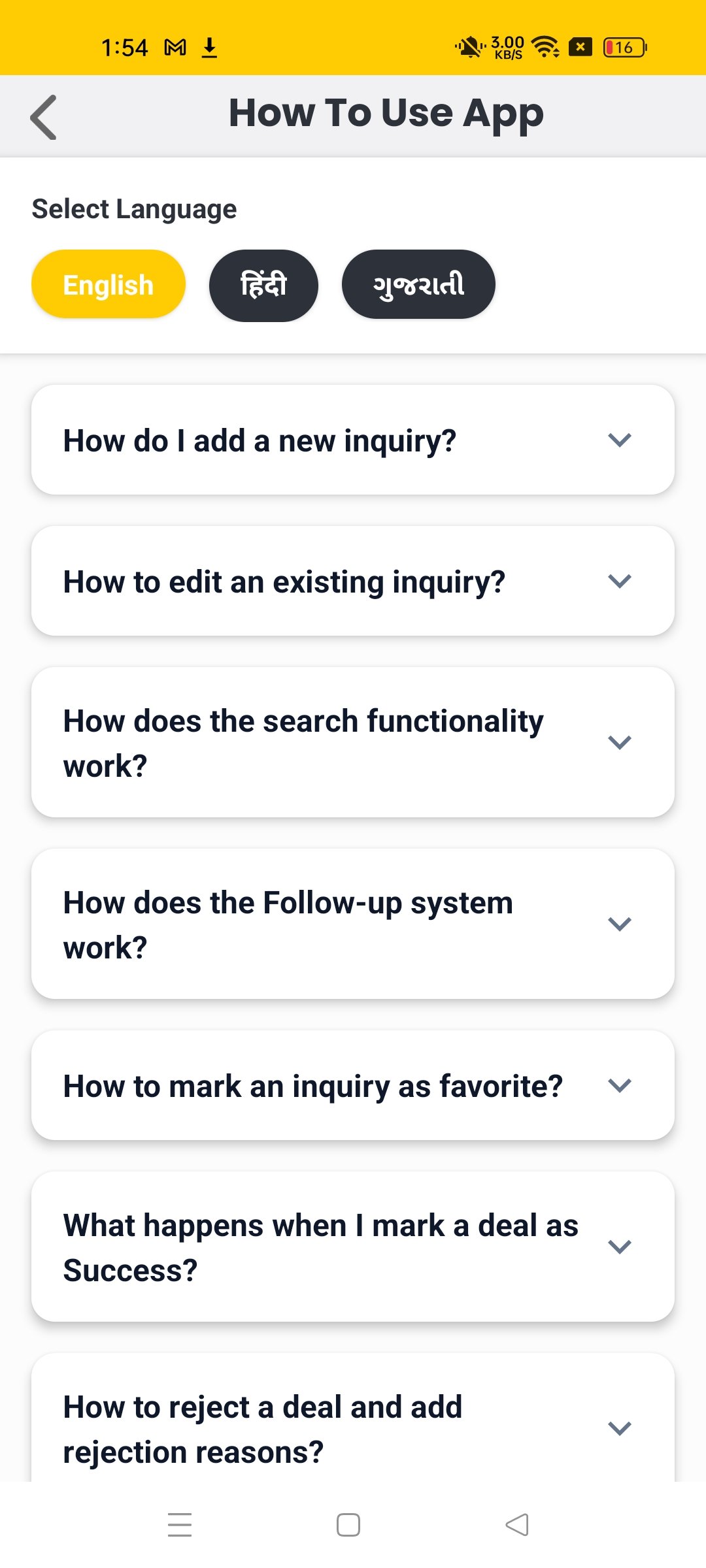
Help Guide
Multi-language help with FAQs:
- 3 language options
- Step-by-step guides
- Common app functions explained
For Developers
Laravel Project Deployment Steps
Deployment Requirements
- Apache Web Server
- PHP 8.2
- MySQL Database (phpMyAdmin)
- Composer (for dependency management)
Step-by-Step Deployment
Step 1: Upload Project Files
Step 2: Database Setup via phpMyAdmin
- Create new database (e.g., lead_manager)
- Import SQL file provided with project
- Note database name, username, and password
Step 3: Configure .env File
APP_NAME="Insurance Manager"
APP_URL=http://yourdomain.com
DB_DATABASE=lead_manager
DB_USERNAME=your_db_username
DB_PASSWORD=your_db_password
phpMyAdmin Database Import
- Go to phpMyAdmin → Select database
- Click "Import" tab
- Choose SQL file provided
- Click "Go" to import
- Verify tables are created successfully
- Database must be imported via phpMyAdmin before accessing the site
- .env file must have correct database credentials
- Apache mod_rewrite must be enabled
- Project files should be in correct directory (usually public_html)